
Apply: Questions & Fields Setup & Configuration
Apply → Questions + Fields
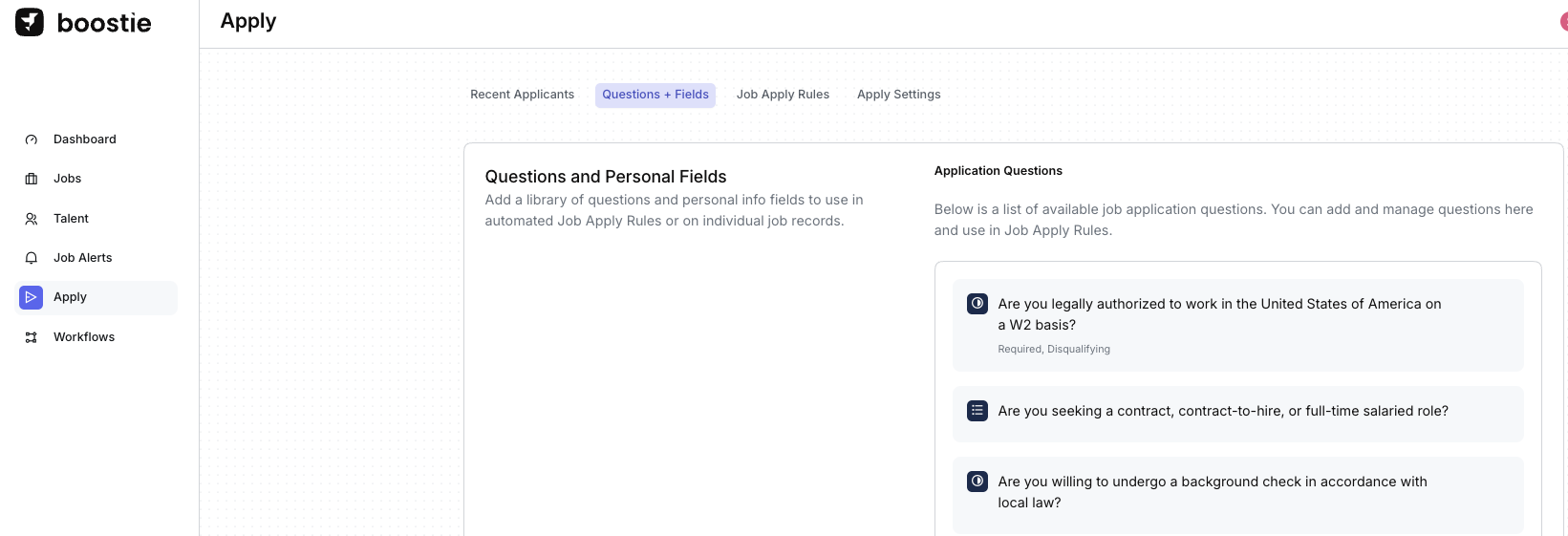
The Questions + Fields section is where you design the data layer of your job application experience. This is your centralized library for building application questions and personal information fields that can be reused across Job Apply Rules or applied directly to individual job records.
Build once. Reuse everywhere. Automate intelligently.
Getting There
- From the left-hand navigation in Boostie, click Apply
- You’ll land on the Recent Applicants page
- Click Questions + Fields in the top navigation
This section allows you to:
- Create and manage application questions
- Manage applicant personal information fields
- Power automated logic inside Job Apply Rules
Application Questions
Application Questions are used to capture structured applicant input and can be referenced in automation rules for routing, filtering, and qualification.
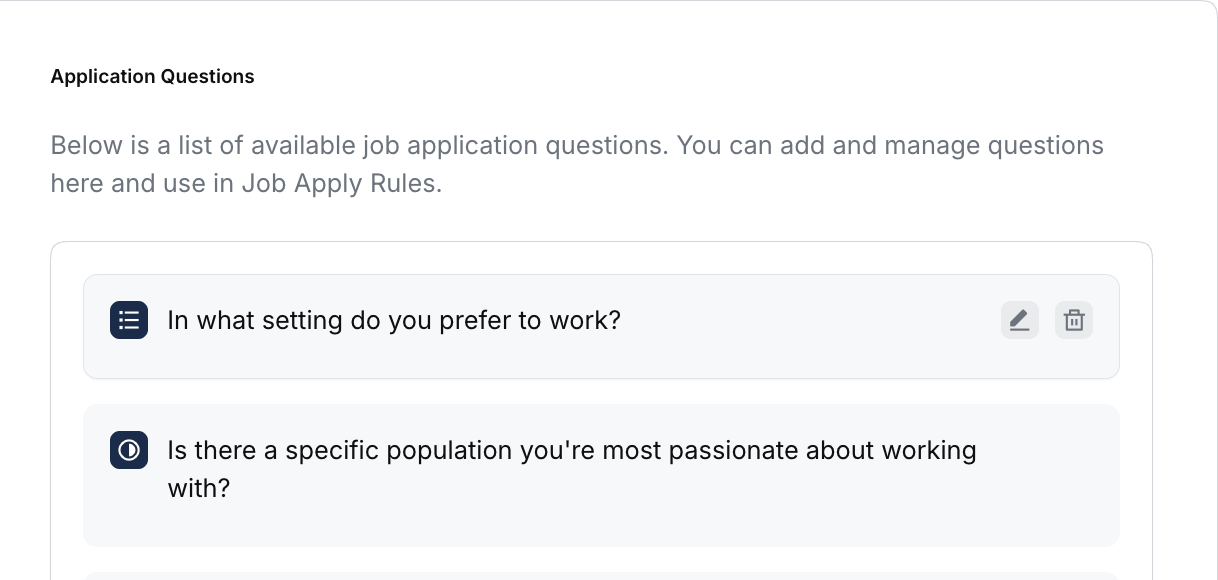
Create a New Application Question
- Scroll to the bottom of the Application Questions list
- Click Add Question
Edit an Existing Question
- Hover anywhere over a question in the grey shaded area
- Click the pencil icon
- The question slide-out opens
- Make your edits and click Save
Delete a Question
- Hover over the question
- Click the trash icon
- Choose Delete or Cancel from the confirmation pop-up
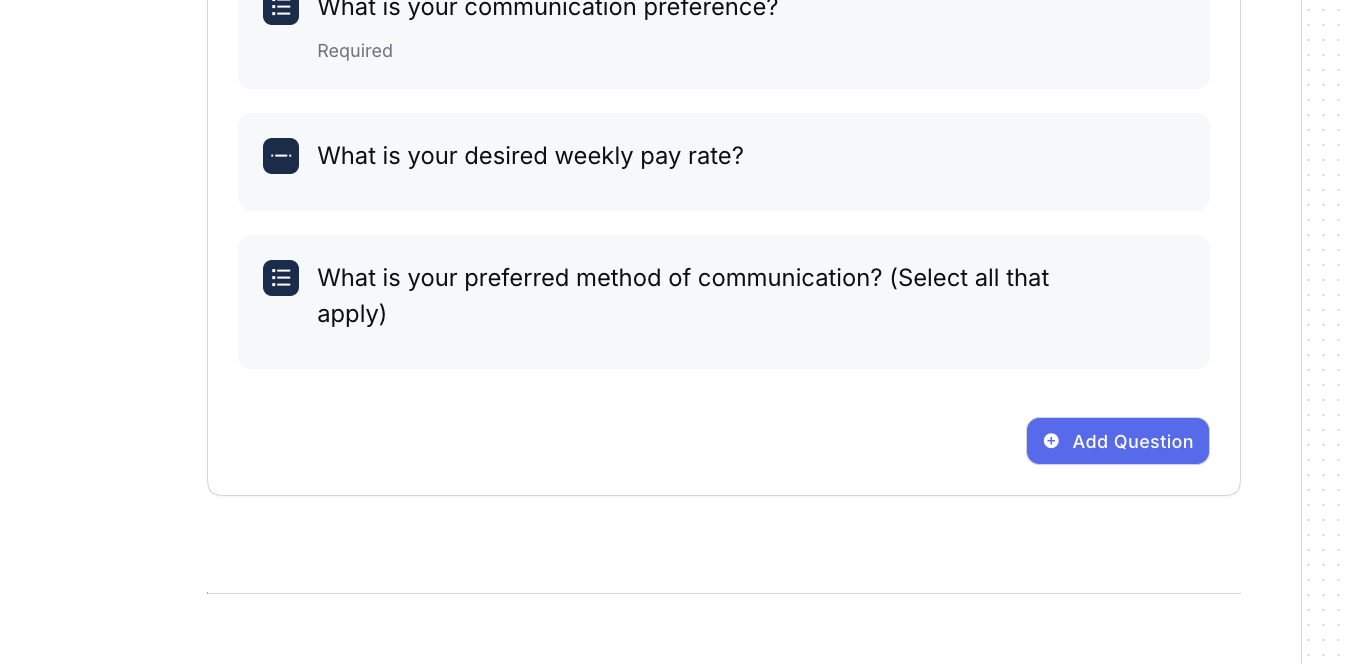
- The Question slide-out form appears
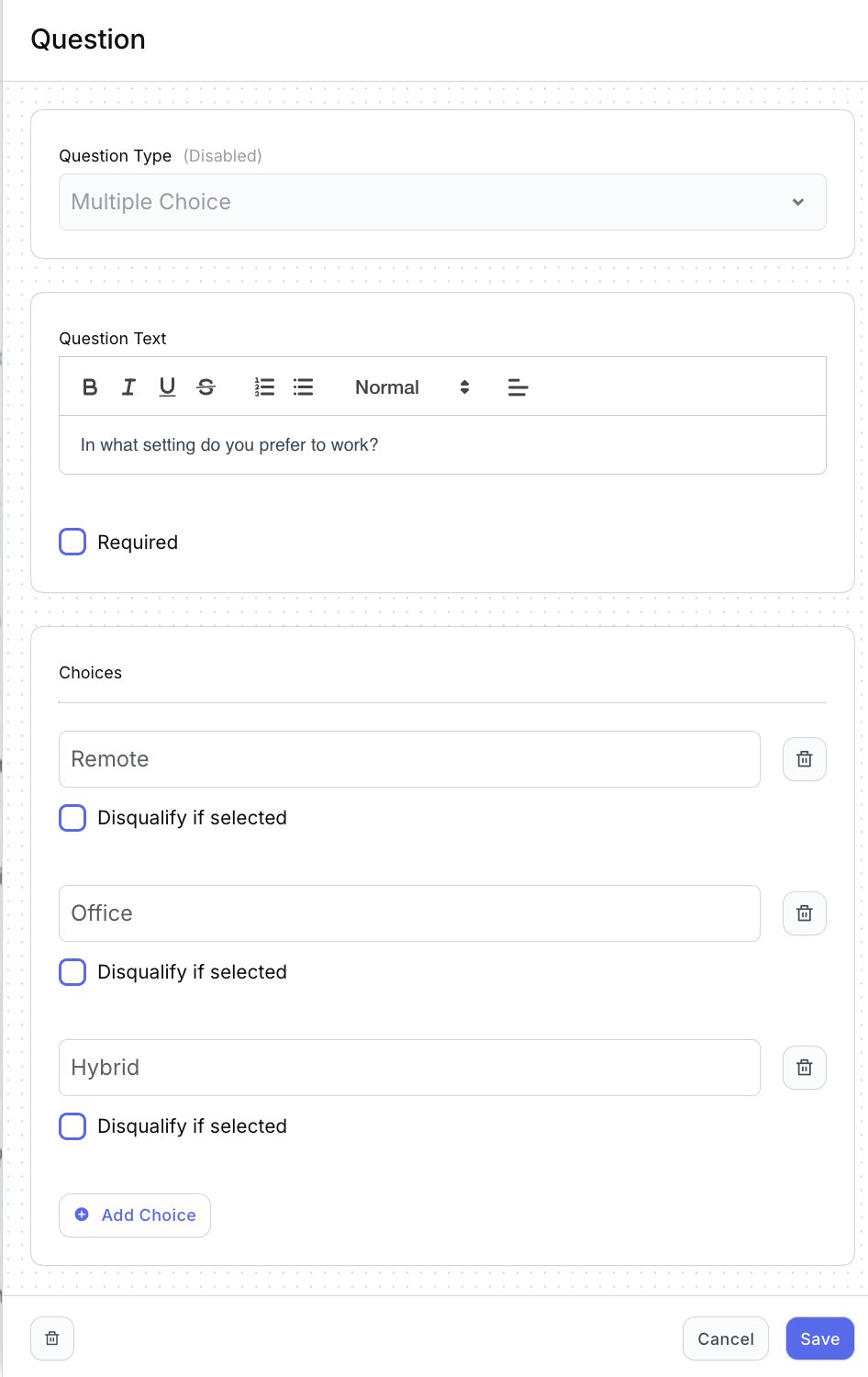
Select the question type that best matches the data you want to capture:
- Yes / No
- Text
- Single Choice
- Multiple Choice
- Number
- Date
- Statement
The form automatically adapts based on the question type selected.
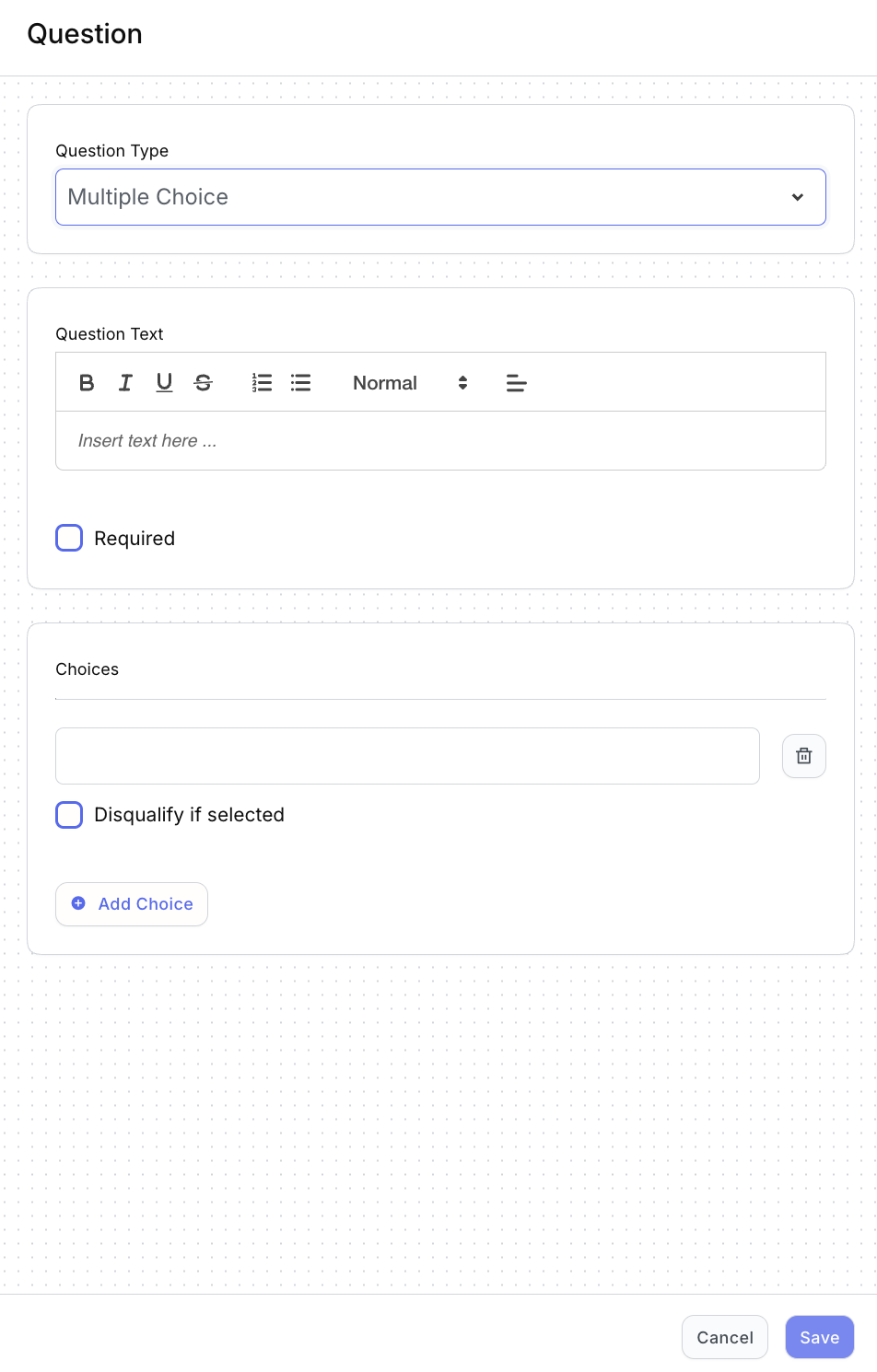
Step 2: Configure the Question
Question Text
- Enter the question as it will appear to applicants
- Use the editor to add formatting or emphasis
- Enable Required if the question must be answered to apply
Choices (for choice-based questions)
- Enter available answer options
- Use the trash icon to remove a choice
- Enable Disqualify if selected to automatically flag applicants
- Click Add Choice to include additional options
This allows Boostie to automatically route or filter applicants based on responses. Note that if an applicant does not answer a question that is both Required and Disqualifying, Boostie will automatically mark them as DQ (disqualified).
Step 3: Save
- Click Save to return to the Questions + Fields page
- Continue adding questions as needed
All saved questions become available for use in Job Apply Rules.
Personal Information Fields
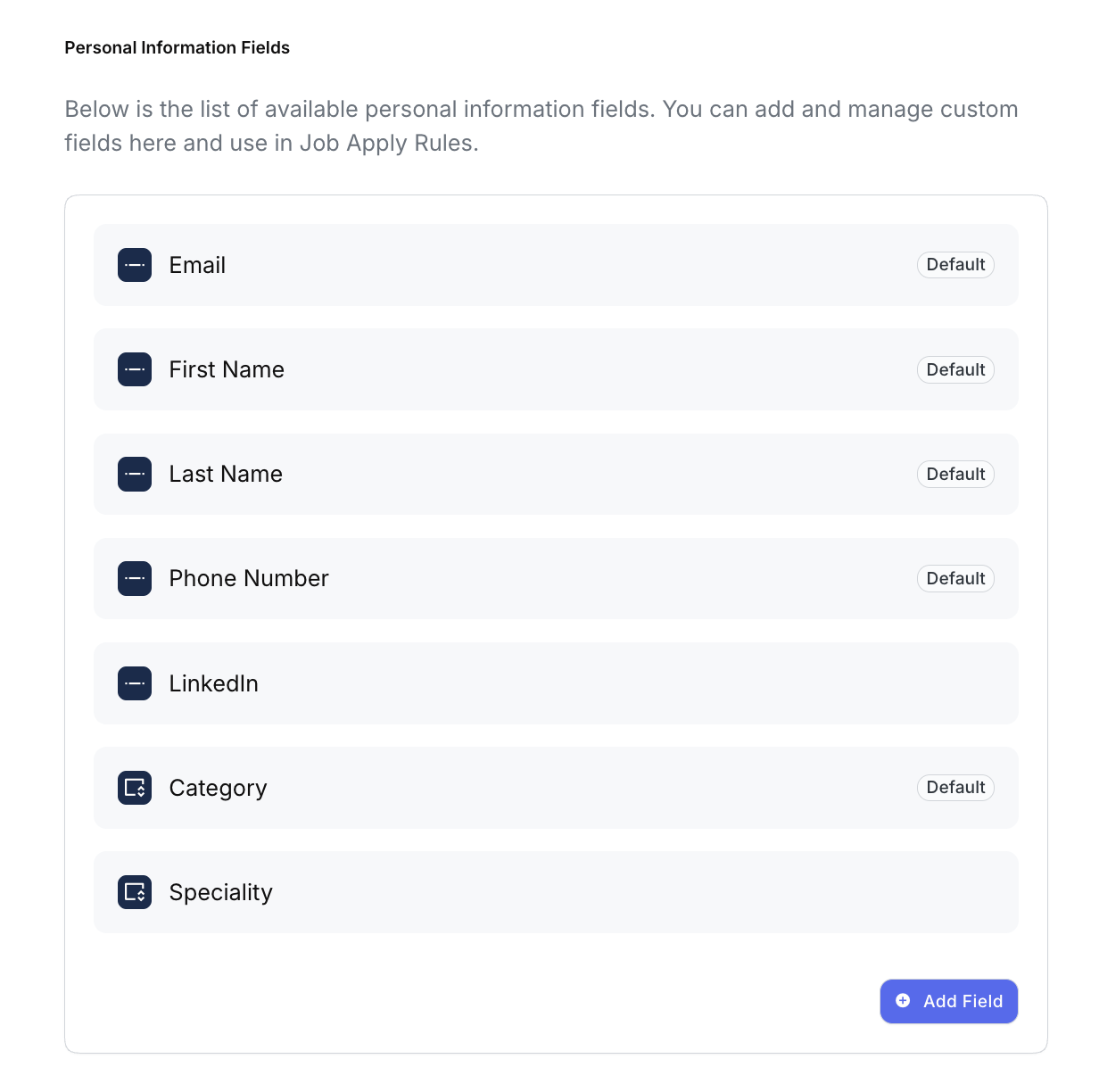
Personal Information Fields define the data captured on the applicant record and written back to your ATS.
Scroll down to the Personal Information Fields section to view and manage available fields.
Default Fields
Boostie provides a set of required default fields (such as: Email, First Name, Last Name, Phone Number and Category). These fields cannot be removed but can be toggled under the Job Apply Rules.
If a default field presents an issue, contact:
- help@boostie.com
- or your Boostie Account Manager
Add a Custom Personal Information Field
-
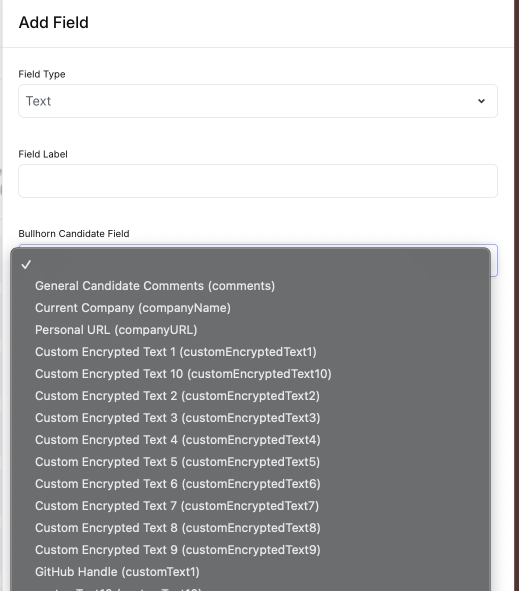
Click Add Field
From the slide-out select the appropriate Field Type
-
If unsure, confirm with your internal operations or ATS SME
Enter the Field Label
-
This is the text shown to the applicant
Map the field to your ATS
- Select the corresponding Candidate Field from the dropdown
- The example shown uses Bullhorn ATS, but the process is the same across all Boostie ATS integrations
-
- Click Save
Once saved, the field becomes available for use in Job Apply Rules.
Why This Matters
- Create a consistent, scalable application experience
- Capture structured data once and reuse it everywhere
- Automate qualification and disqualification logic
- Ensure clean, mapped data flows directly into your ATS
This is the foundation for intelligent automation inside Apply → Job Apply Rules. Where your questions and fields drive automated decisions.