
Job Apply Rules: Add, Configure & Test a Rule
Apply -> Job Apply Rules -> Add Rule
Add Rule is where you create targeted application logic for specific job types using Boostie’s “If this, then that” approach. These rules layer on top of the default All Jobs rule to ensure candidates only see questions and fields that are relevant to the role they’re applying for.
Boostie automatically creates an All Jobs rule during onboarding. This rule cannot be deleted and acts as the foundation for every application. In this section, you’ll focus on adding additional rules for specific job categories, titles, locations, or work types - and then return to refine All Jobs if needed.
Create a New Job Apply Rule
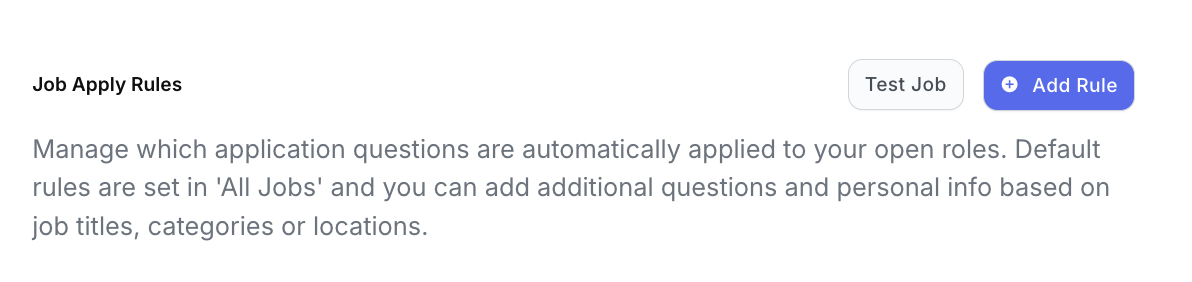
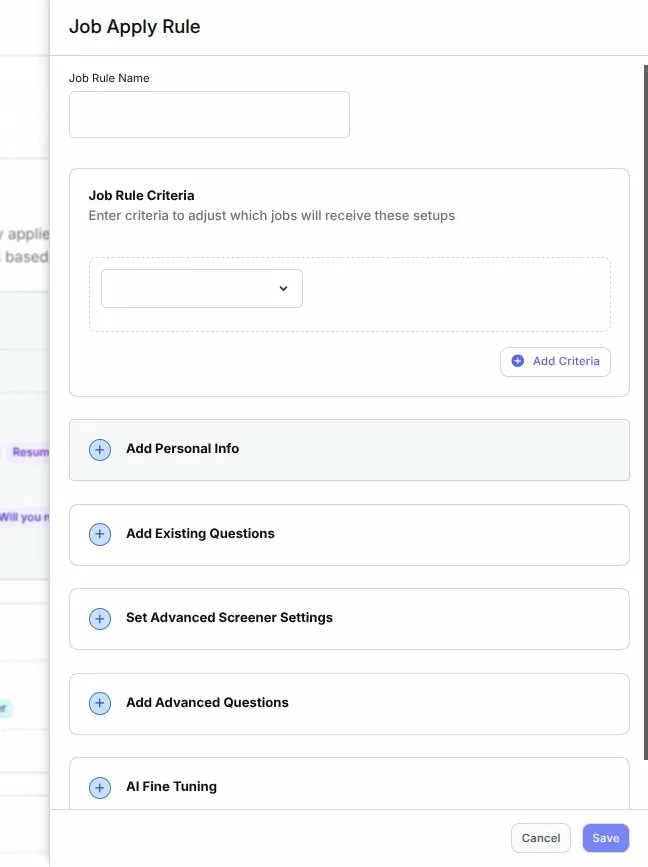
From Apply → Job Apply Rules, click Add Rule.
A Job Apply Rule slide-out will appear.
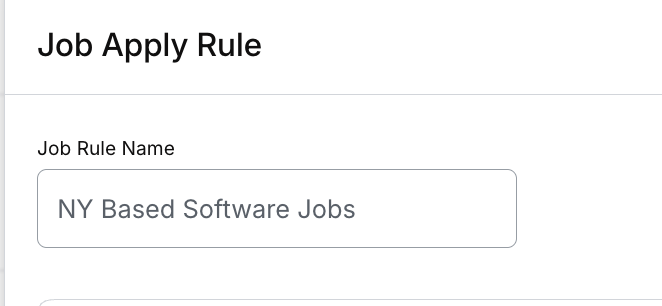
1. Name Your Job Apply Rule
Start by giving your rule a clear, human-readable name. This helps your team quickly understand what the rule is designed to handle.
Examples
- Software Jobs
- Manufacturing Roles
- NYC-Based Jobs
- Remote Contract Positions
2. Add Job Rule Criteria (The “IF”)
Criteria determine when the rule applies.
Choose a rule type such as:
- Job Title
- Category
- State
- Remote Job
Then select an operator, including:
- Is
- Is Not
- Contains
- Does Not Contain
- Starts With
Finally, enter or select the matching value as per the screenshot below:

3. Combine Multiple Criteria (Optional)
To make rules more precise, click Add Criteria.
You can combine logic using:
- AND
- OR
Example
-
Job Title contains “Project Manager”
AND
- Remote Job is Yes
Boostie evaluates the full logic to determine whether the rule applies to a job.
4. Configure Personal Info Fields (The “THEN” – Part 1)
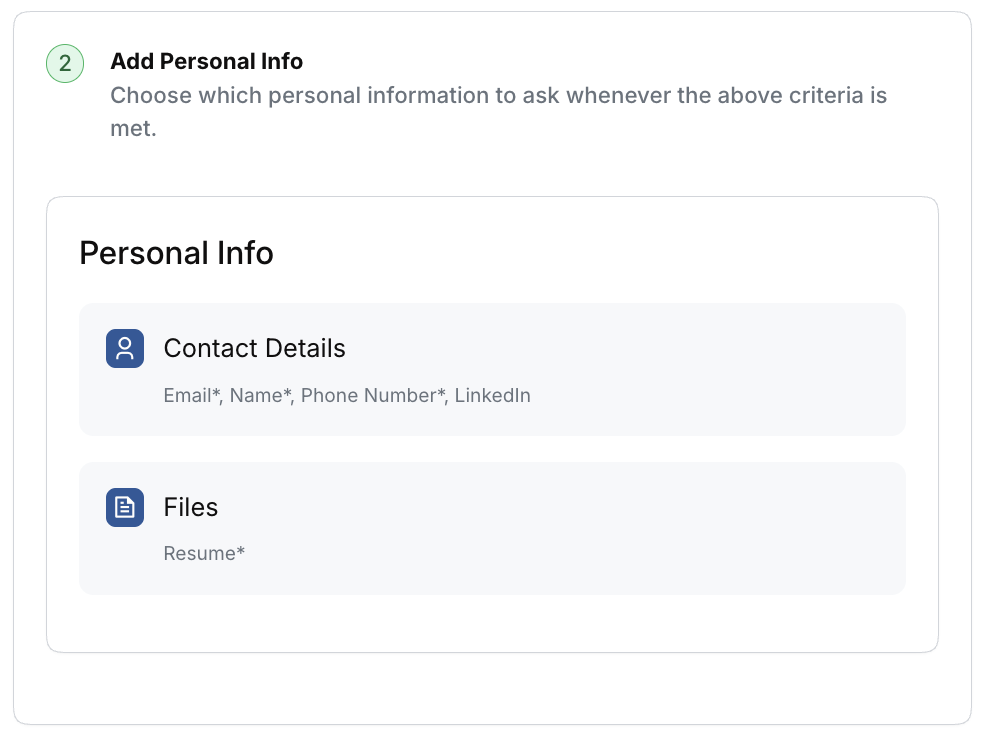
This section controls what personal information applicants must provide. By clicking on Contact Details or Files (under Personal Info) the Contact Details slide-out will open.
-
Fields with an asterisk (*) are required
Greyed-out fields are defaults and cannot be edited
Editable fields (such as LinkedIn) can be:
- Required, or
- Optional
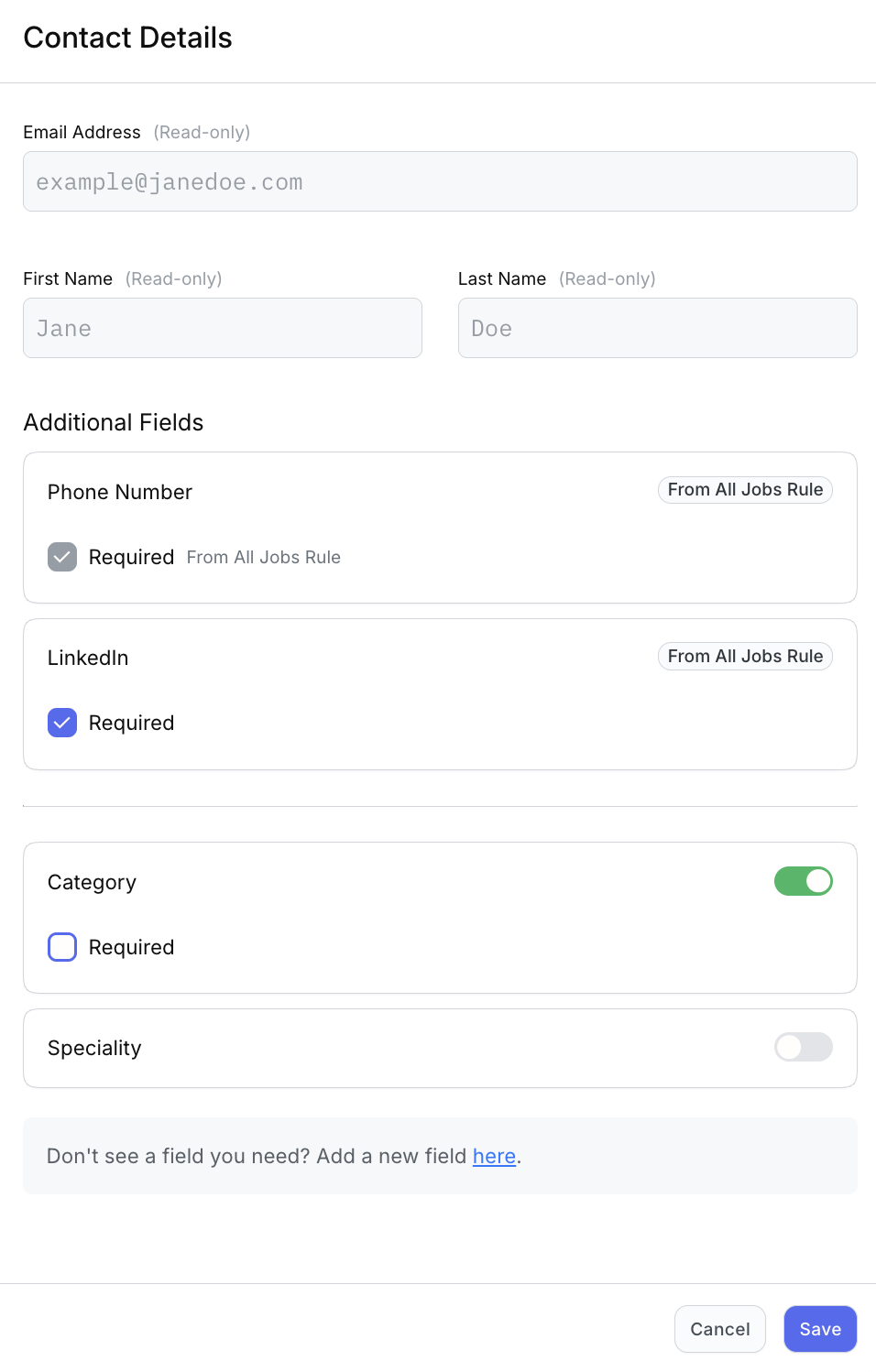
You can also:
- Toggle Category or Specialty on and mark them required
- Click Add a new field here to jump to Apply → Questions + Fields to enable or configure additional fields
Changes here apply only to jobs that match this rule.
5. Add Existing Questions (The “THEN” – Part 2)
Click Select Questions to open the Question Templates slide-out.
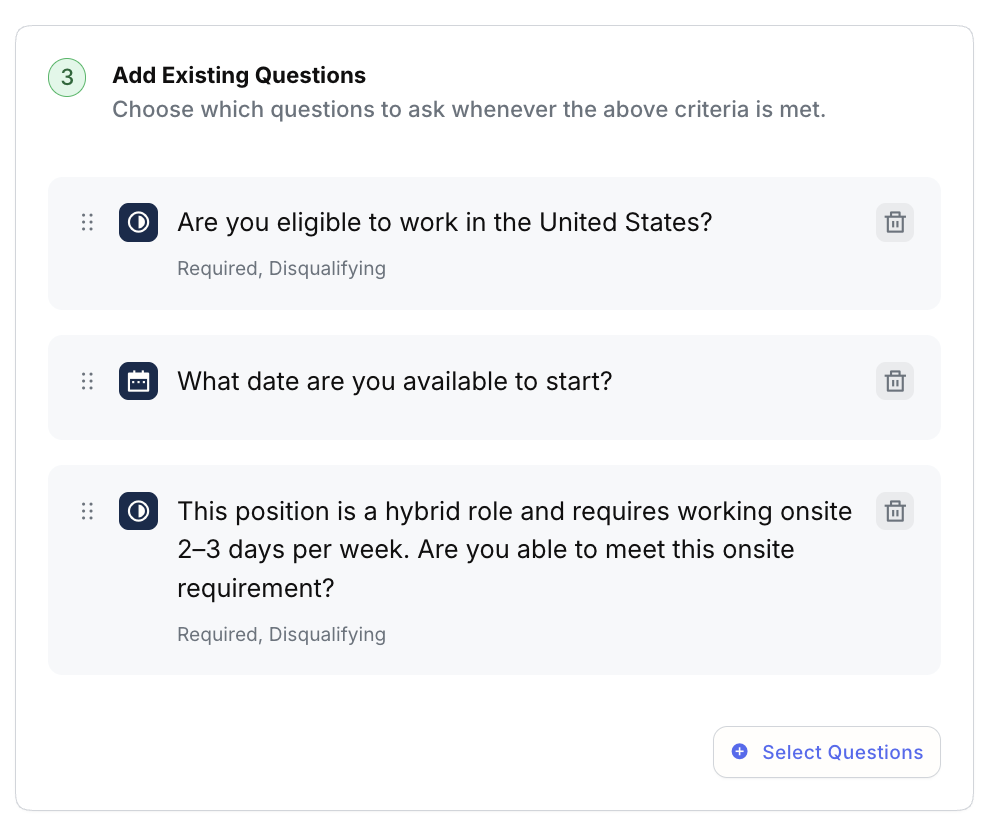
This list includes all questions created in Questions + Fields, along with their configured logic:
- Question type (Yes/No, Date, Multi-Select, etc.)
- Required vs. optional
- Disqualifying behavior (if configured)
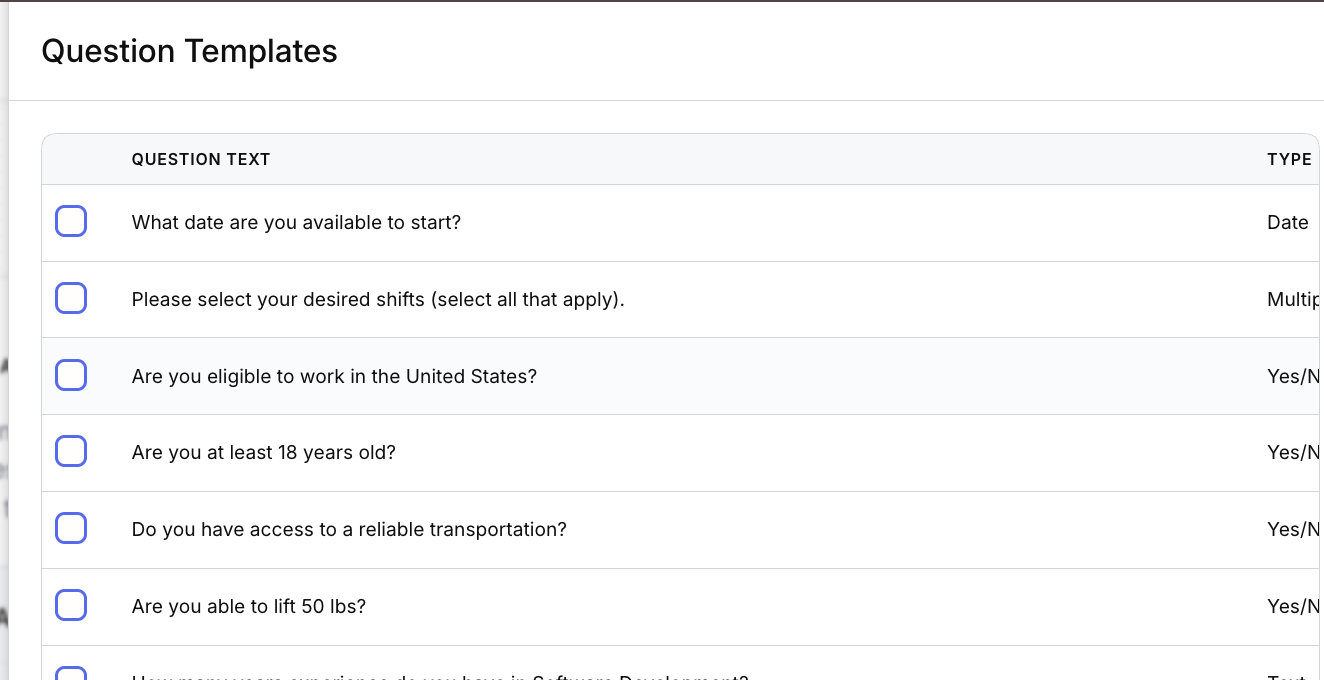
Select the questions you want to apply to this job type and click Save.
6. Editing or Removing Criteria and Questions
As you build your Job Apply Rule, Boostie makes it easy to refine your setup before saving.
- Pencil icon – Edit or update an existing criterion, personal info field, or question
- Trash can icon – Remove a criterion or question from the rule
These actions only affect the rule you’re currently editing. Changes are not applied until you click Save, giving you full control to experiment and adjust as needed.
7. Save the Rule
When your criteria, personal info fields, and questions are complete, click Save on the Job Apply Rule slide-out.
The rule will now apply automatically to new jobs that meet the criteria.
8. Advanced Screener, Advanced Questions & AI Fine Tuning
Boostie has expanded Job Apply Rules. These additions give recruiters more control over how applicants are guided through Boostie Apply - and how the platform surfaces the most qualified candidates automatically.
The Bigger Picture: What Recruiters Really Need
When a recruiter is staring down a list of 100 applicants, manually pre-qualifying every one of them is slow, inconsistent, and unrealistic.
Job Apply Rules already handle the first phase - capturing personal info and applying knockout questions. Now, Boostie takes it further.
Based on a candidate's Fit Signal after their initial application and resume match, higher-scoring applicants can be automatically routed into an Advanced Screener that asks deeper, role-specific questions. The result: your most qualified candidates rise to the top of the funnel before the recruiter ever opens the list.
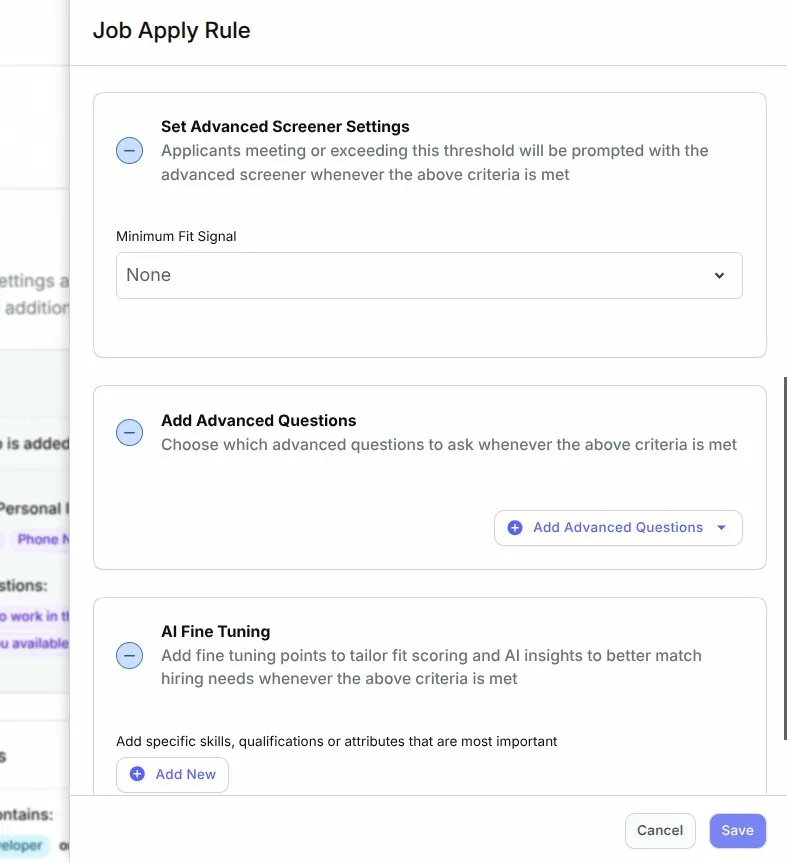
Set Advanced Screener Settings
This section controls the threshold for triggering the Advanced Screener.
How it works:
- Set a Minimum Fit Signal value using the dropdown
- Applicants who meet or exceed that threshold will automatically be prompted with the Advanced Screener after completing the initial application
- Applicants below the threshold skip the Advanced Screener entirely
Pro Tip: Use the Minimum Fit Signal setting to protect recruiter time. Only the candidates who clear the bar get the deeper questions - keeping your pipeline clean and your team focused.
Add Advanced Questions
Choose which Advanced Questions to present to applicants who meet the Fit Signal threshold for this rule.
Click + Add Advanced Questions to reveal two options:
- Add from Library - Select from existing advanced questions you've already created in Questions + Fields
- Generate with AI - Let Boostie generate role-appropriate advanced questions based on the job criteria defined in this rule
Select your questions and click Save.
Advanced Questions are designed to go deeper than standard knockout questions - think role-specific scenarios, experience validation, and the details that actually matter to the hiring manager.
AI Fine Tuning
AI Fine Tuning lets you add specific guidance that shapes how Boostie scores applicants and generates AI insights for jobs matching this rule's criteria.
How to add Fine Tuning:
- In the AI Fine Tuning section, click + Add New
- Enter the specific skills, qualifications, or attributes that matter most for this job type
- Click Save
Fine Tuning examples:
- "Prioritize candidates with hands-on Python and cloud infrastructure experience."
- "Highlight candidates who mention shift flexibility and prior warehouse experience."
- "Weight certifications like PMP or Six Sigma heavily in scoring."
Fine Tuning tailors Boostie's fit scoring and AI insights to reflect what the hiring manager actually cares about - not just what's in the job description.
The Combined Power
When these three sections work together inside a Job Apply Rule, here's what happens automatically:
- A candidate applies and answers the initial questions
- Boostie scores them against the job using AI and resume matching
- Candidates who clear the Minimum Fit Signal are routed into the Advanced Screener
- Their deeper answers - shaped by Advanced Questions and evaluated through your AI Fine Tuning - push the most qualified candidates to the top
- The recruiter sees a prioritized, pre-qualified list - before they've spoken to anyone
Your criteria. Applied automatically. Scaled across every rule.
Sync Rules to Existing Jobs
At the bottom of the Job Apply Rules page, click Sync Job Apply Rules to Existing Jobs.
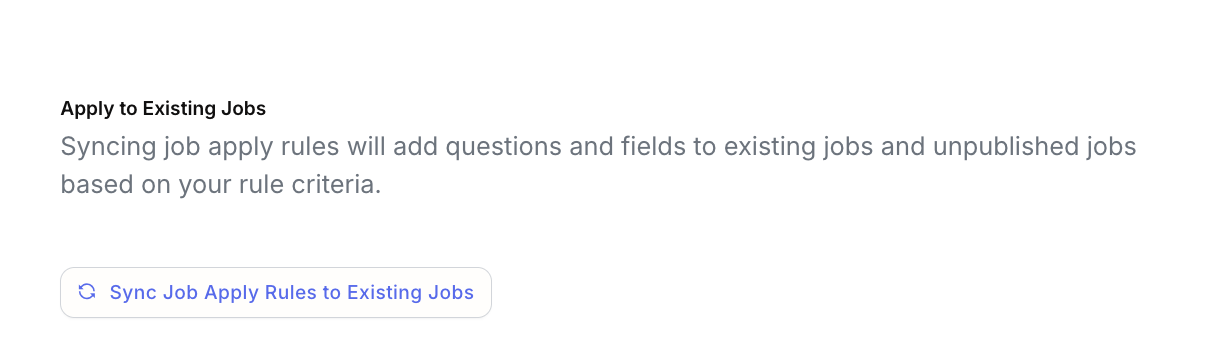
This step applies your newly created rules to:
- Existing jobs
- Unpublished jobs
Syncing ensures consistency across your entire job catalog—not just future postings.
Test a Job Apply Rule
Use Test Job (top-right of the Job Apply Rules page) to validate your setup.
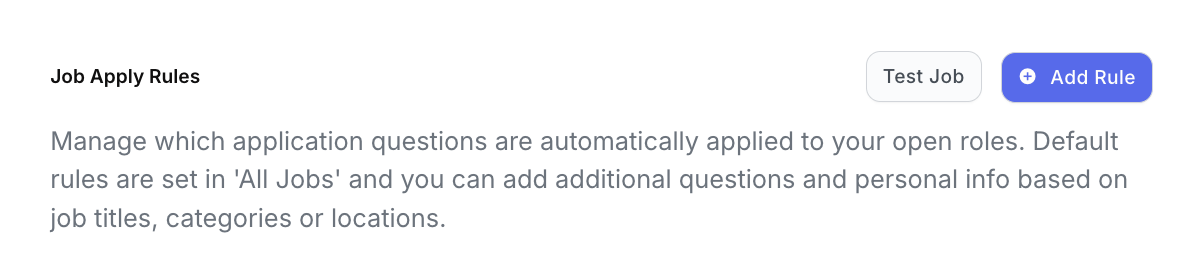
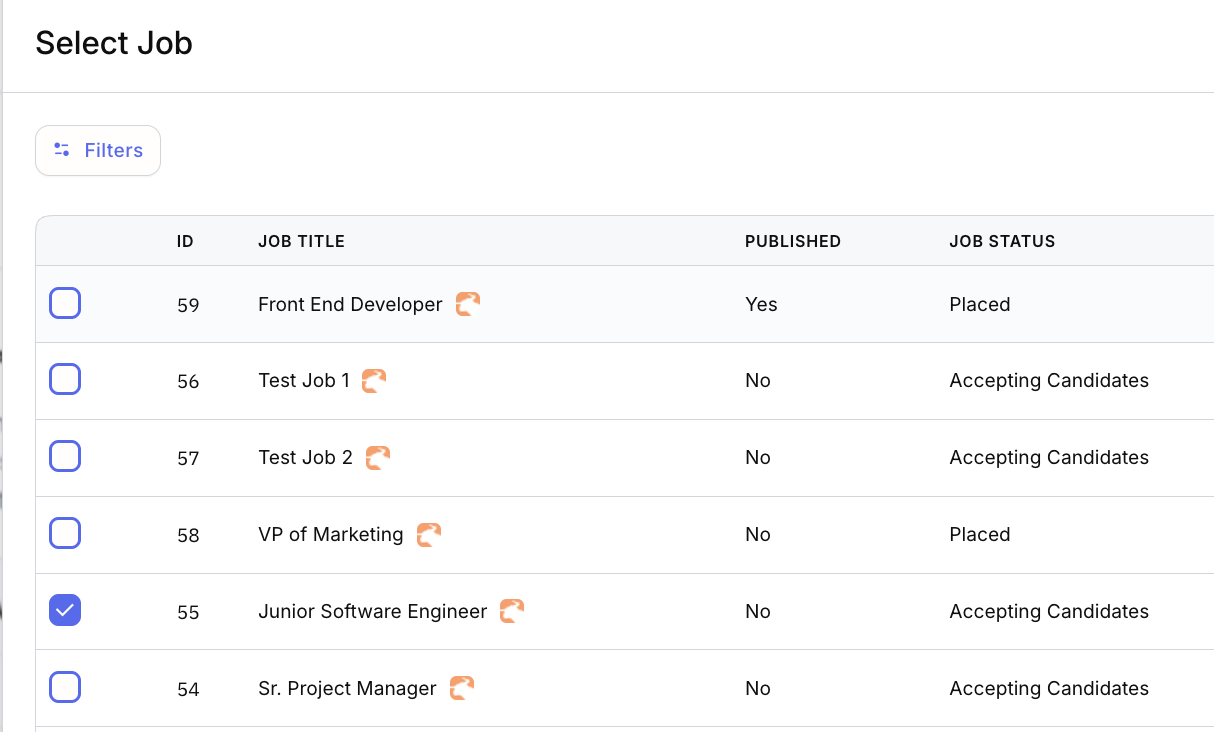
- Select a synced job from your ATS
- Boostie shows all rules that apply to that job
- Click Select Job at the bottom of the page
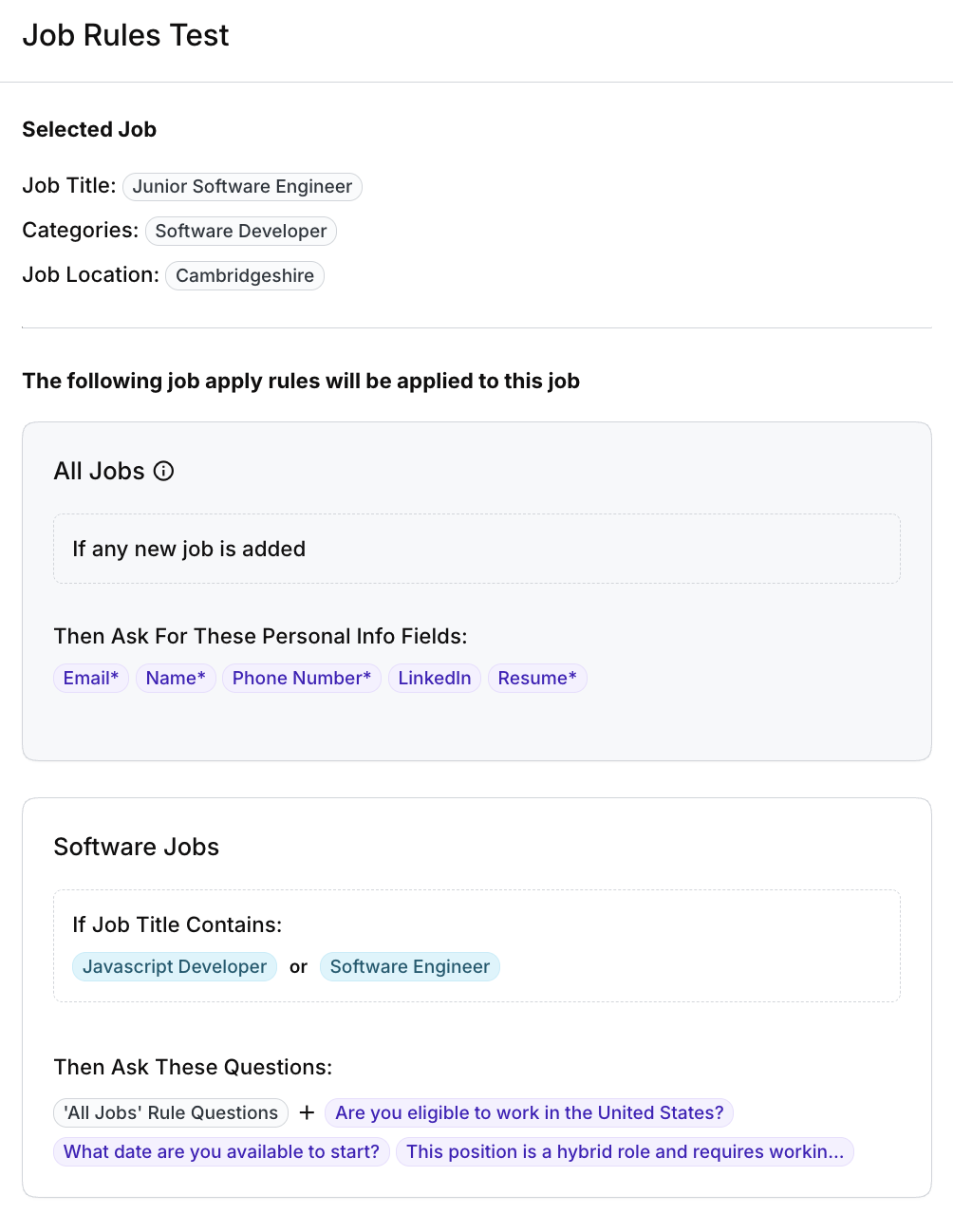
Example
A Junior Software Engineer role may match:
- All Jobs (default, greyed out)
- Software Jobs (custom rule)
This view confirms exactly which fields and questions candidates will see.
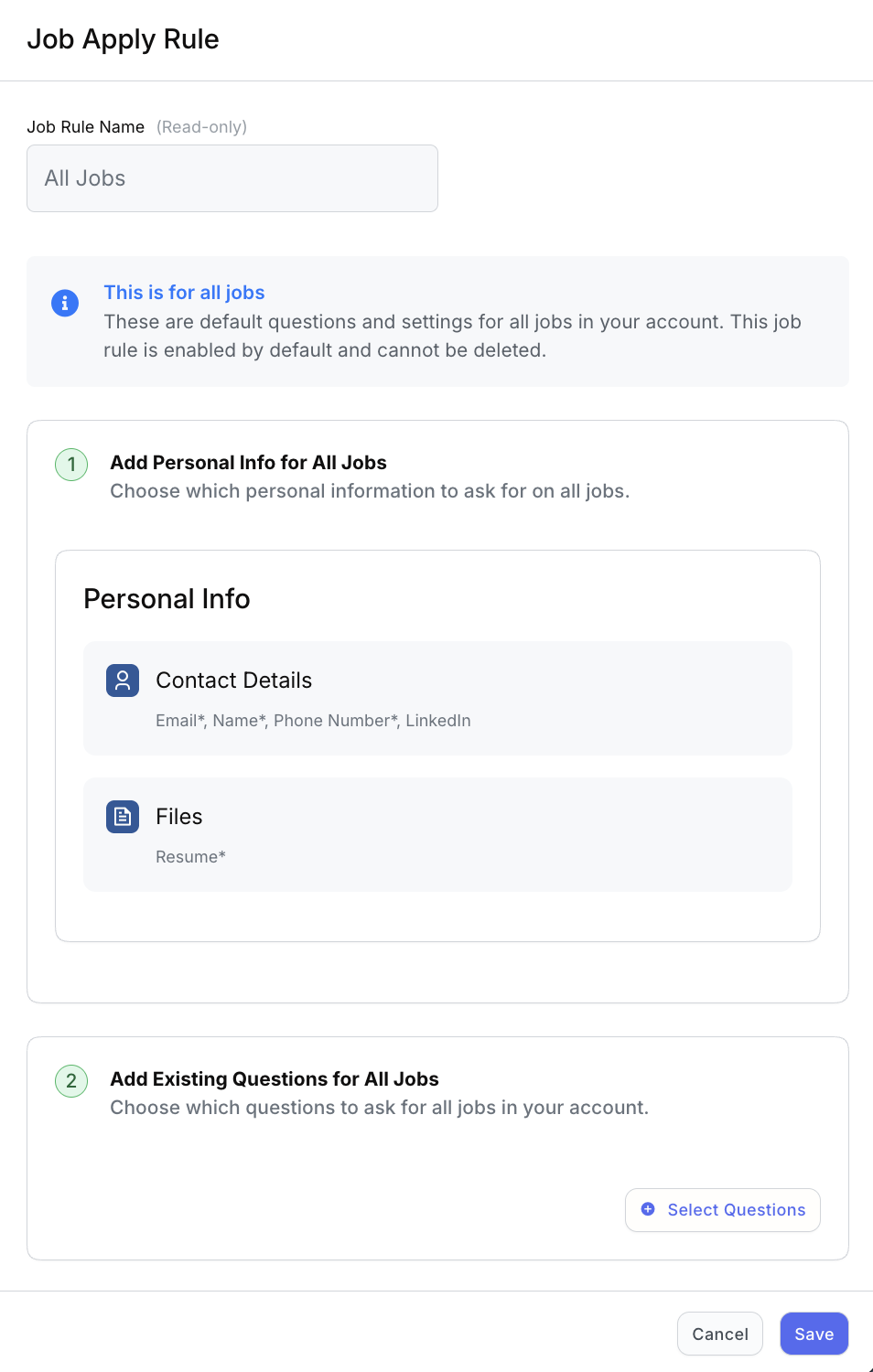
About the All Jobs Rule
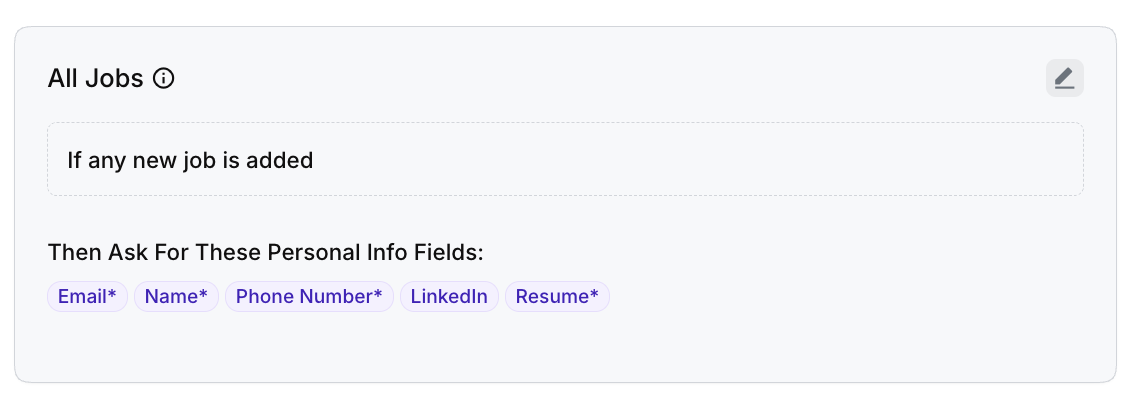
- Created by Boostie during onboarding
- Applies to every job
- Cannot be deleted
You can click the pencil icon to edit allowed sections such as:
- Personal Info fields
- Additional questions
Anything greyed out is locked and applies globally.
Key Takeaway
Think of Add Rule as building smart layers:
- All Jobs sets the baseline
- Additional rules refine the experience by job type
Boostie handles the logic automatically, so your apply flow stays relevant, consistent, and easy to scale as hiring grows.