
Bullhorn Job Mapping: Custom Address Fields Setup
Custom Bullhorn Job Address Fields
Boostie now lets Bullhorn customers map custom job fields to Boostie’s City, State, and Zip Code - so job locations display cleanly even if you don’t use Bullhorn’s standard Address field.
What it does
When enabled, Boostie pulls job location from the Bullhorn fields you choose and uses them anywhere location shows up in Boostie (job cards, job details, job board, etc.).
Best for
- Teams using custom Bullhorn fields for city/state/zip
- Bullhorn Address field that’s blank, inconsistent, or used for something else
- Keeping job location consistent across Boostie
Step 1: Navigate to Job Mapping (Bullhorn Settings)
- In Boostie, click your name in the top-right.
- Click Settings.
- In the center navigation, select Bullhorn.
- Find the Job Mapping section and click Edit Job Mapping.
This opens the Job Mapping slide-out panel.
Once saved, Boostie will use these mapped fields to display job location anywhere location appears in Boostie (job cards, posting details, etc.).
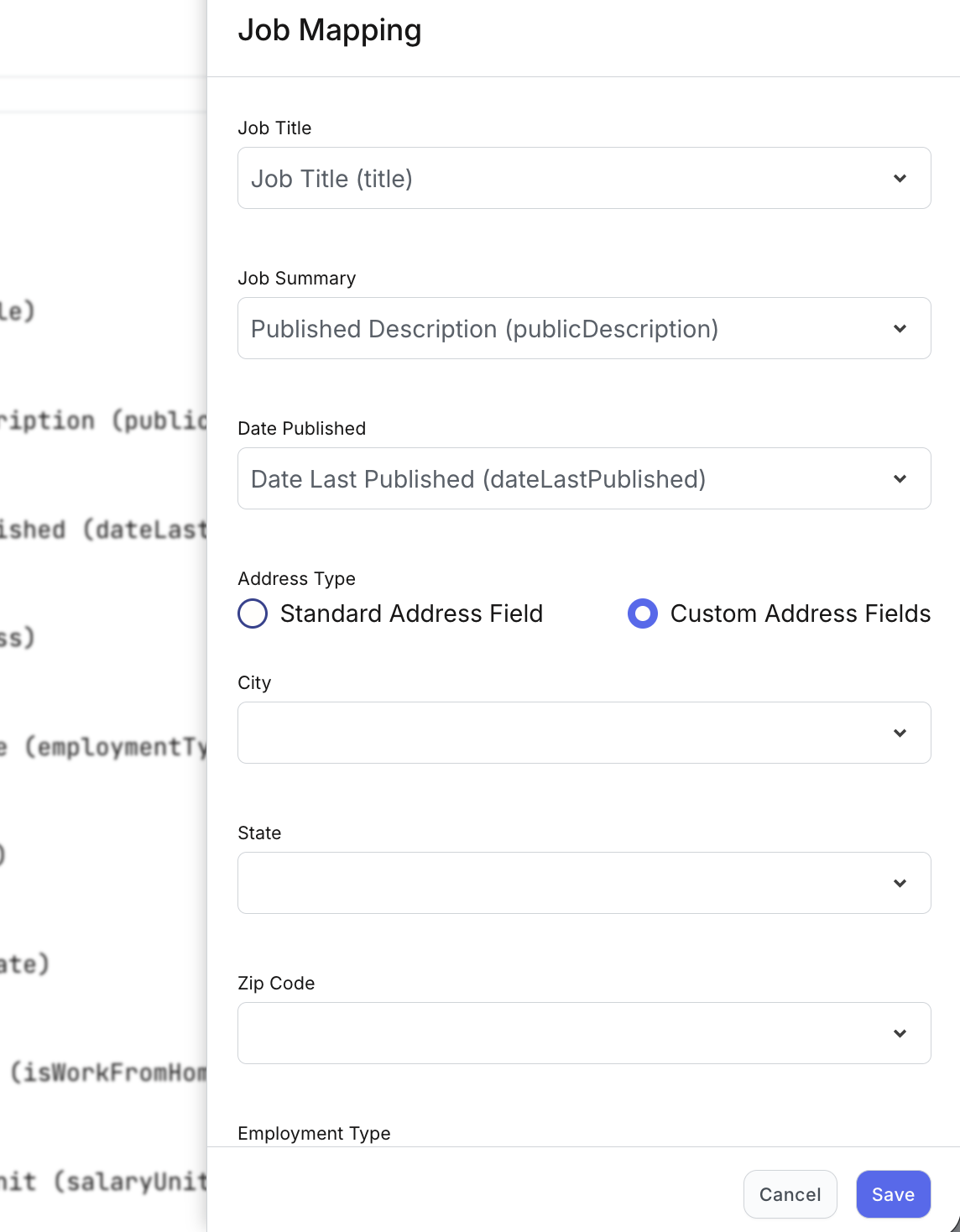
Step 2: Enable Custom Address Fields + map City/State/Zip
-
In the slide-out panel, scroll to Address Type.
Select Custom Address Fields (instead of Standard Address Field).
Use the dropdowns to choose which Bullhorn fields should populate:
- City
- State
- Zip Code
- Click Save.
What you’ll see after saving
- Job locations in Boostie will populate from your mapped custom Bullhorn fields
- City/State/Zip will display consistently across Boostie wherever location is used
Pro tip
If your team uses multiple location formats (remote, multi-city, region-only), map the fields that are most consistently populated in Bullhorn - Boostie will only be as clean as the source data.