
Job Feeds: Setup & Configuration
Job Feeds
Job feeds let you syndicate your published Boostie jobs to external platforms - Indeed, LinkedIn, aggregators, or any custom destination - as an XML file. Each feed has its own URL, format, and field configuration, so you can supply a different feed to each platform without maintaining separate data or changing shared settings.
Navigate to Jobs → Job Feeds to create and manage your feeds.

Feed Types
- Indeed - Outputs the standard Indeed XML schema with all core job fields. Optionally enables Indeed Quick Apply so candidates apply through Boostie's flow without leaving Indeed.
- LinkedIn - Outputs LinkedIn's Automated Job Posting XML format. Boostie maps your job data to LinkedIn's required and optional fields automatically, including structured salary data, skills, and LinkedIn employment type codes. No manual mapping required.
- Zip Recruiter - Feed Import allows partners to post and manage jobs in bulk via an XML feed. You provide a hosted XML file containing all your open jobs, and ZipRecruiter processes it automatically on a regular schedule
. - Custom - You control every element name. Boostie seeds a default set of standard fields on creation that you can rename, remove, or extend to match any destination's schema.
Creating a Feed
- From Jobs → Job Feeds, click Add Feed.
- Enter a Feed Name. The name must be unique across your feeds. It becomes the URL slug - a feed named Indeed gets the URL
.../jobs/indeed.xml. The name and URL are locked after creation - delete and recreate to rename a feed. - Select a Type: Indeed, LinkedIn, or Custom.
- Click Save. For Custom feeds, the drawer stays open in edit mode so you can immediately configure the seeded fields.

Feed URL
Each feed is served at https://[your-board-domain]/jobs/[slug].xml. For example, a feed named Indeed produces the URL https://jobs.yourfirm.com/jobs/indeed.xml . The live, clickable URL appears in the feed list table and inside the edit drawer.
Pro Tip: Name each feed after its destination - Indeed, LinkedIn, Agency Aggregator - so the URL is self-explanatory when you share it with a platform.
Configuring an Indeed Feed
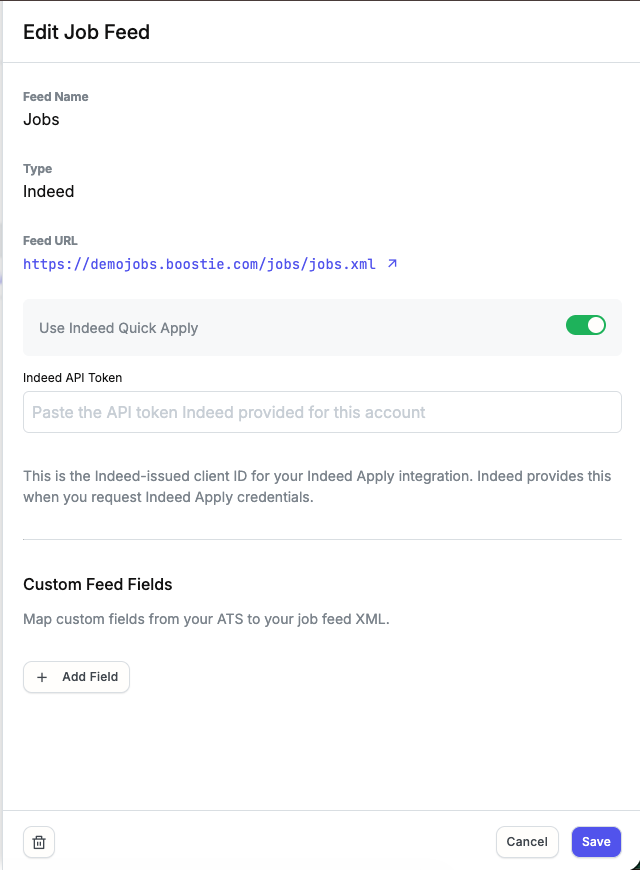
The Indeed feed outputs the standard Indeed XML schema. Click any feed row in the list to open its settings. Two optional settings control Indeed Quick Apply:
- Use Indeed Quick Apply - When on, each job entry in the feed includes the Quick Apply block that powers the Indeed Apply button on Indeed's site. Candidates who click Apply on Indeed are routed through your Boostie apply flow, so every application is captured and tracked in Boostie.
- Indeed API Token - Required when Quick Apply is on. This is the client ID Indeed issues when you request Indeed Apply credentials. Toggle Quick Apply off (or leave the token blank) to omit the Quick Apply block from the feed entirely.
Configuring a LinkedIn Feed
LinkedIn feeds use LinkedIn's Automated Job Posting XML schema. No additional configuration is required - Boostie automatically maps the following fields from your job data:
- Job title, description, and company name
- Location (city, state, country, postal code)
- Employment type, mapped to LinkedIn's required codes (FULL_TIME, PART_TIME, CONTRACT, INTERNSHIP, VOLUNTEER)
- Workplace type (Remote or On-site)
- Structured salary block (low/high range with pay period and currency) when compensation data is present and parseable
- Skills and apply URL
Hand LinkedIn the feed URL from the Job Feeds tab and LinkedIn will crawl and post your jobs automatically. If your ATS is Bullhorn, you can also add custom ATS field mappings to the LinkedIn feed - see the Custom ATS Fields section below.
Configuring a Zip Recruiter Feed
Zip Recruiter feeds use ZipRecruiter's Feed Import XML schema. No additional configuration is required - Boostie automatically maps your job data to the fields ZipRecruiter's importer expects.
Hand ZipRecruiter the feed URL from the Job Feeds tab. Add it to your ZipRecruiter employer account under Feed Import, and ZipRecruiter will pull your open jobs and refresh them automatically on its own schedule - no manual re-uploads. If your ATS is Bullhorn, you can also add custom ATS field mappings to the Zip Recruiter feed - see the Custom ATS Fields section below.
Configuring a Zip Recruiter Feed
Zip Recruiter feeds use ZipRecruiter's Feed Import XML schema. No additional configuration is required for the feed itself - Boostie automatically maps your job data to the fields ZipRecruiter's importer expects.
To set up your Zip Recruiter feed:
- From Jobs → Job Feeds, click the Zip Recruiter feed row to open its edit drawer.
- Copy the Feed URL. This is the link ZipRecruiter needs to pull your jobs - add it to your ZipRecruiter employer account under Feed Import.
- (Optional) Toggle on Filter the jobs in this feed to send ZipRecruiter only a subset of your published jobs instead of everything. See Filtering Jobs in a Feed below for available conditions.
- (Optional) If your ATS is Bullhorn, use Custom Feed Fields to add your Bullhorn job custom fields to the feed's XML. Click Add Field, name the Feed Field Name, and select the matching Custom Field from the dropdown.
- Click Save.
Once ZipRecruiter has the feed URL, it pulls your open jobs and refreshes them automatically on its own schedule - no manual re-uploading required.

Configuring a Custom Feed
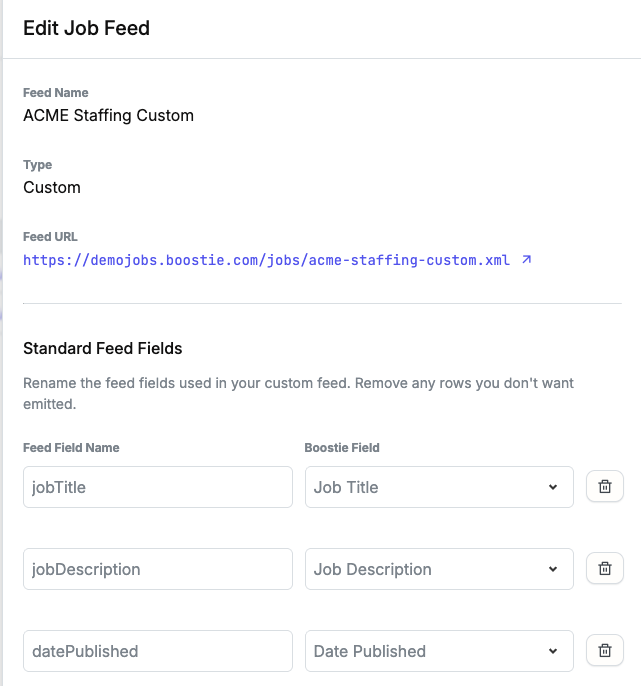
Custom feeds give you full control over the XML element names. When you first save a Custom feed, Boostie seeds it with a default set of standard Boostie fields:
- Job Title, Job Description, Date Published, ATS Job ID
- Apply Page URL, Job Page URL, Company, Owner Email
- City, State, Country, Compensation, Employment Type
Each row maps a Feed Field Name (the XML element name emitted in the output) to a Boostie Field (the data source). In the Standard Feed Fields section of the edit drawer you can:
- Rename any Feed Field Name to match what your destination expects - for example, change jobTitle to title
- Remove rows for fields you don't want emitted
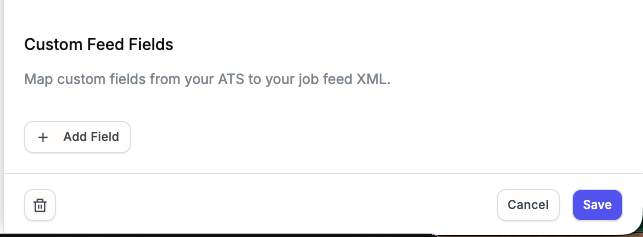
- Click Add Field to include additional Boostie fields from the full available list
Feed field names must be valid XML element names: start with a letter or underscore, followed only by letters, digits, hyphens, underscores, or periods.
Custom ATS Fields (Bullhorn)
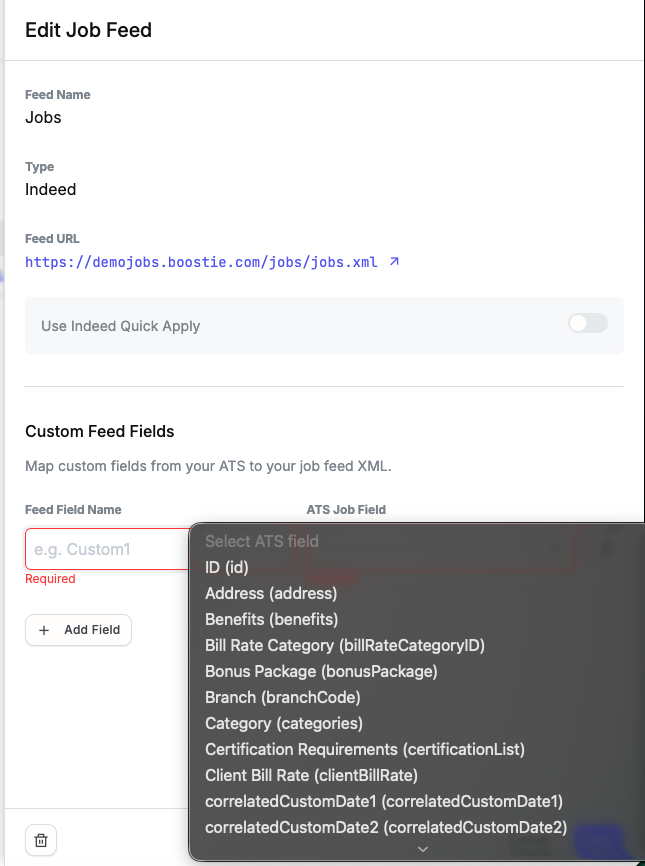
If your ATS is Bullhorn, you can map custom Bullhorn job fields to additional XML elements on any feed type - Indeed, LinkedIn, or Custom. In the Custom Feed Fields section of the edit drawer:
- Click Add Field.
- Enter the Feed Field Name - the XML element name that will appear in the output.
- Select the ATS Job Field from the dropdown (pulled from your Bullhorn field metadata).
- Click Save to apply.
Remove any row with the delete button next to it.
Filtering Jobs in a Feed
Every feed includes all published jobs by default. The Filter Jobs section in the edit drawer lets you narrow that set so only published jobs matching your conditions appear in the feed. Published jobs that do not match the filter are excluded from the feed; unpublished jobs are never included regardless of filter settings.
Filtering is available on the edit drawer after a feed has been created - it is not shown during initial creation.
To add a filter:
- Open the feed's edit drawer from Jobs → Job Feeds by clicking any feed row in the list to open its settings.
- Scroll to the Filter Jobs section and toggle on Filter the jobs in this feed.
- Configure your conditions - combine any number of rules using And (all conditions must match) or Or (any condition must match) logic.
- Click Save.
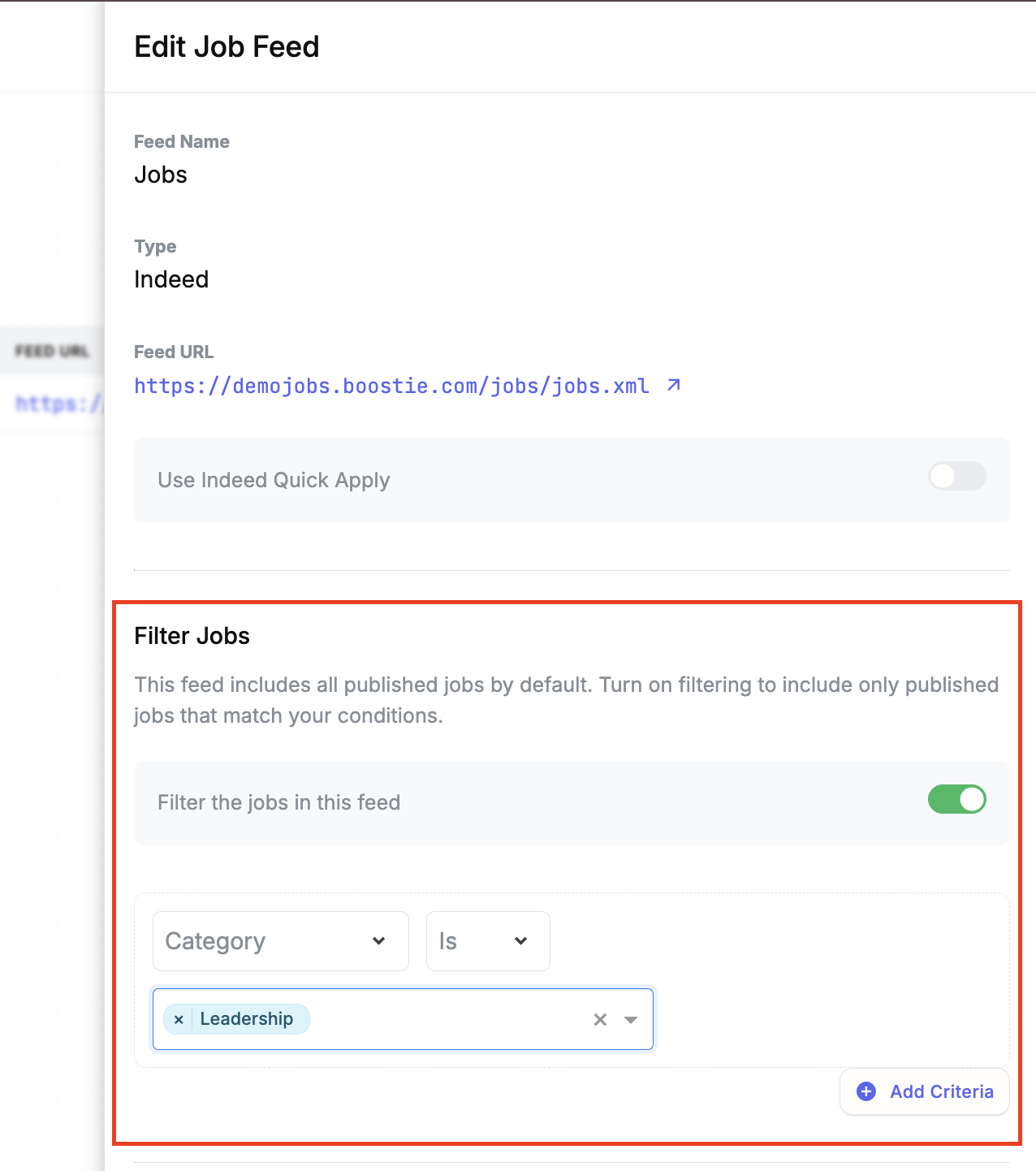
Available condition types:
- Category - matches jobs assigned to one or more selected categories
- Job Title - matches by title text (is, is not, contains, does not contain, starts with)
- Location - matches jobs in a specific state
- Remote - matches jobs by their remote status
- Employment Type - matches jobs of a specific employment type
- Job Custom Fields - matches on any custom job field defined in your account, using operators appropriate to each field's type (text, number, date, choice)
To remove the filter entirely, toggle Filter the jobs in this feed off and save. The feed returns to including all published jobs.
Pro Tip: Use category or employment type conditions to maintain separate feeds for different platforms - for example, a technology-category-only feed for one aggregator and a full feed for another - without creating separate job records.
Deleting a Feed
Open the feed's edit drawer and click Delete. Confirm the prompt. The feed URL stops serving immediately - point any platforms that were using it to a replacement feed URL before deleting.
Best for: Removing an unused feed, or renaming (delete the old feed and create a new one with the name you want - name and slug cannot be changed after creation).
Why It Matters
Indeed, LinkedIn, and custom aggregators each expect a different XML schema. Named, typed feeds let you give each destination exactly what it expects - without duplicate maintenance or one-size-fits-all compromises. And because every application link routes candidates through your Boostie apply flow, your screening data and analytics stay complete no matter where a candidate first found the role.