
Boostie Advanced Screener: Setup & Question Configuration
When to Use Advanced Screener
High-volume roles where quantity is the problem, not the pipeline. When applications are flooding in, Advanced Screener does the heavy lifting before a recruiter picks up the phone. Use it to surface the candidates worth calling - automatically - so your team isn't buried sorting through noise.
Specialized roles where a standard application doesn't tell the full story. Some positions require more than a resume and a few knockout questions. Advanced Screener gives you a dedicated space to go deeper - role-specific questions, scenario-based prompts, or anything else that helps you separate strong candidates from great ones before the first conversation.
How It Works
When an applicant submits their application, Boostie calculates their fit signal in real time. If that signal meets or exceeds the minimum you've configured, they'll be prompted to complete the Advanced Screener immediately - right after applying.
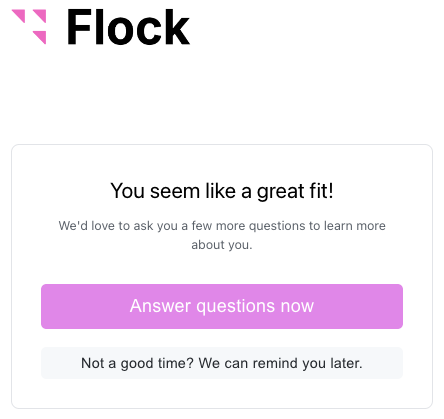
If now isn't a good time, applicants can opt to be reminded later. Boostie will send them an email with a link to complete the screener at their convenience.
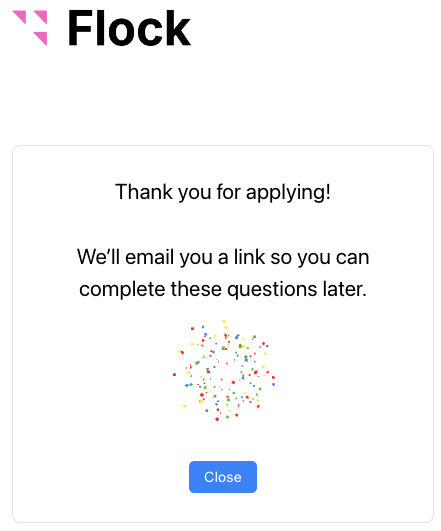
Spam applicants and disqualified candidates never reach this step, they're handled automatically before the Advanced Screener is ever surfaced.
Applicants Without a Resume
Applicants who apply without a resume receive a Potential fit signal by default. That signal is evaluated against your configured minimum the same way a resume-scored applicant's is - so a no-resume applicant qualifies for the Advanced Screener whenever your threshold is set to Potential or below.
In the applicant drawer, their evaluation shows a brief summary and no Strengths or Areas Preventing Higher Score sections. Those sections are derived from resume analysis and do not appear when no resume is available.
If the applicant later uploads their resume, Boostie re-scores them from the real resume and resets their screener eligibility for a fresh evaluation. Any screener they completed before uploading was graded against their information at that time. Boostie's automated screener reminders do not re-trigger on resume upload, so if you want the applicant to retake the screener with their full profile in place, reach out to them directly.
Voice Screener: Mic Check
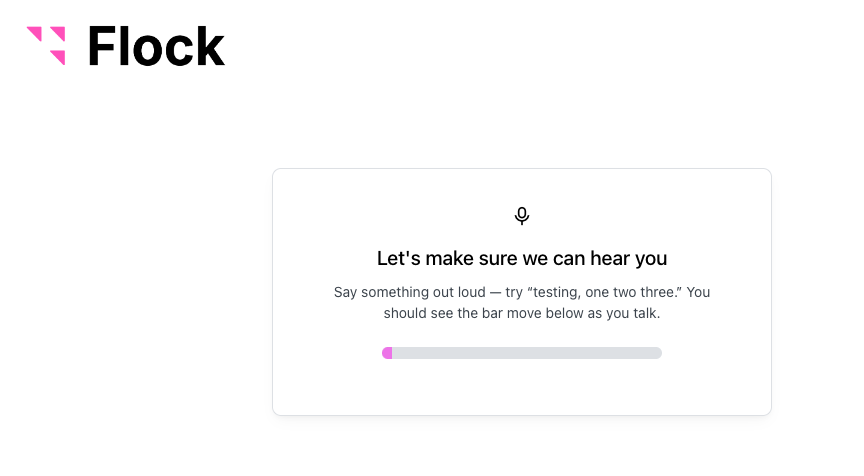
For jobs using the voice screener, applicants go through a quick mic check after they consent to the interview and before it starts. They're shown a prompt to say a few words out loud, and a live audio meter on screen confirms Boostie can hear them. Once audio is detected, they proceed straight into the interview.
If Boostie can't detect audio, the applicant sees a plain-language message explaining the likely cause along with steps to fix it:
- Browser permission blocked - the browser is preventing microphone access. The applicant is directed to allow it via the browser's address bar or settings.
- No microphone found - no device is detected. The applicant is prompted to connect a microphone or headset and confirm it isn't muted or in its case.
- Mic in use by another app - a different application such as Zoom or Teams is holding the mic. The applicant is prompted to close it and try again.
From the error screen, applicants can click Try Again once they've resolved the issue. If they can't get a working mic, they can click Email me a link to try later to exit gracefully and return on a different device or at a better time. They land on a calm confirmation screen rather than an error page, and they stay in your pipeline - appearing as having consented but not yet started rather than as a drop-off.
Choosing a Screener Type
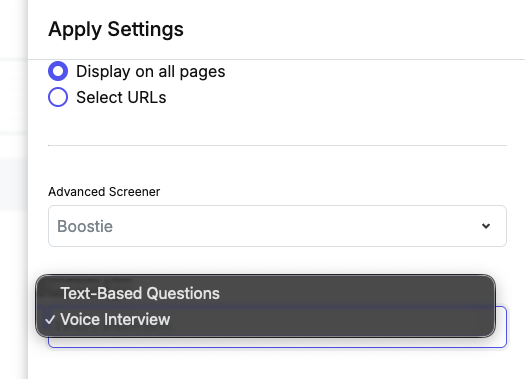
Boostie supports two delivery modes for the Advanced Screener. This is an account-wide setting in Apply Settings - all jobs share the same screener type. Go to Apply in the left navigation, open Apply Settings, and click the edit icon to open the settings drawer. Scroll to the Advanced Screener section.
- Text-Based Questions - candidates answer questions one at a time on screen, directly after applying. Supports all question types including Yes/No, Multiple Choice, Date, and Number.
- Voice Interview - candidates complete a live voice interview in their browser. An AI interviewer named by you reads your advanced screener questions, the conversation is transcribed, and answers are saved to the applicant record automatically. Only Short Text and Long Text question types are supported in this mode.
Configuring a Voice Interview
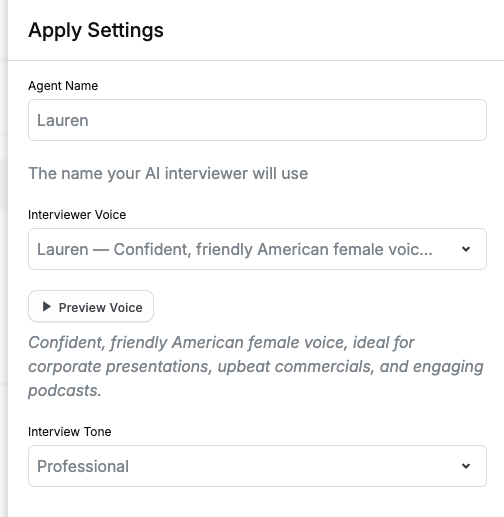
When Voice Interview is selected, three additional settings appear:
- Agent Name - the name the AI interviewer introduces itself with during the call. Defaults to Alex. This name appears in the candidate's intro screen as "Meet [Agent Name], Your AI Interviewer."
- Interviewer Voice - choose a voice from the dropdown. Click Preview Voice to hear a short sample clip using your configured agent name before saving. The selected voice description appears below the dropdown to help you choose.
- Interview Tone - sets the conversation style of the interviewer. Professional is warm and business-focused; Conversational is relaxed and approachable; Formal is precise and structured.
Switching Away from Text-Based Questions
If you switch from Text-Based Questions to Voice Interview, Boostie shows a confirmation before saving. Accepting removes any advanced screener questions that use incompatible types (anything other than Short Text or Long Text) from all jobs and job rules. Review your existing questions before switching - this cannot be undone.
Setting Up the Advanced Screener
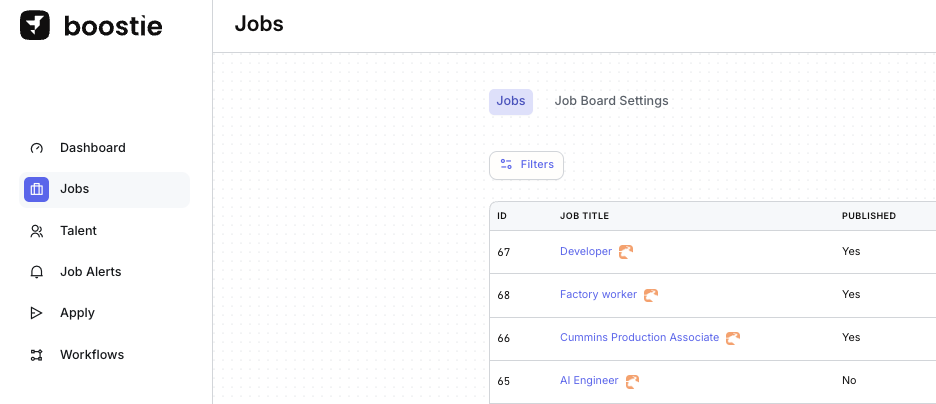
1. Navigate to your job.
Go to Jobs in the left-hand navigation and click the job title you want to configure.
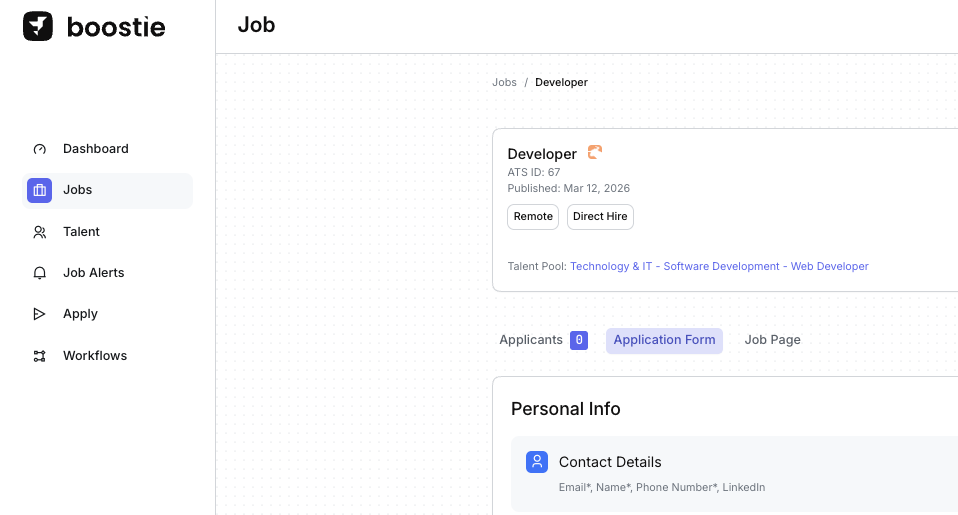
2. Open the Application Form.
Inside the job, click the Application Form tab.
3. Enable Advanced Screening.
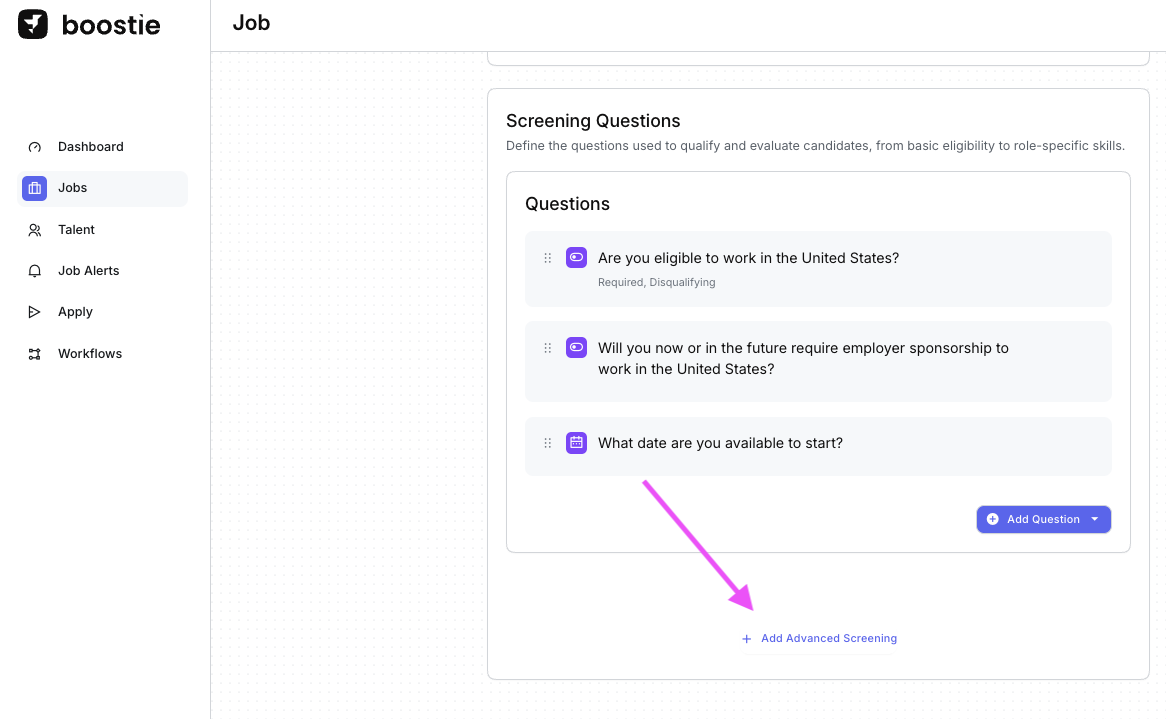
Scroll below the Screening Questions section. You'll see either a grey Advanced Screener Settings box or a + Add Advanced Screening link. Click either to enable it and begin configuration.
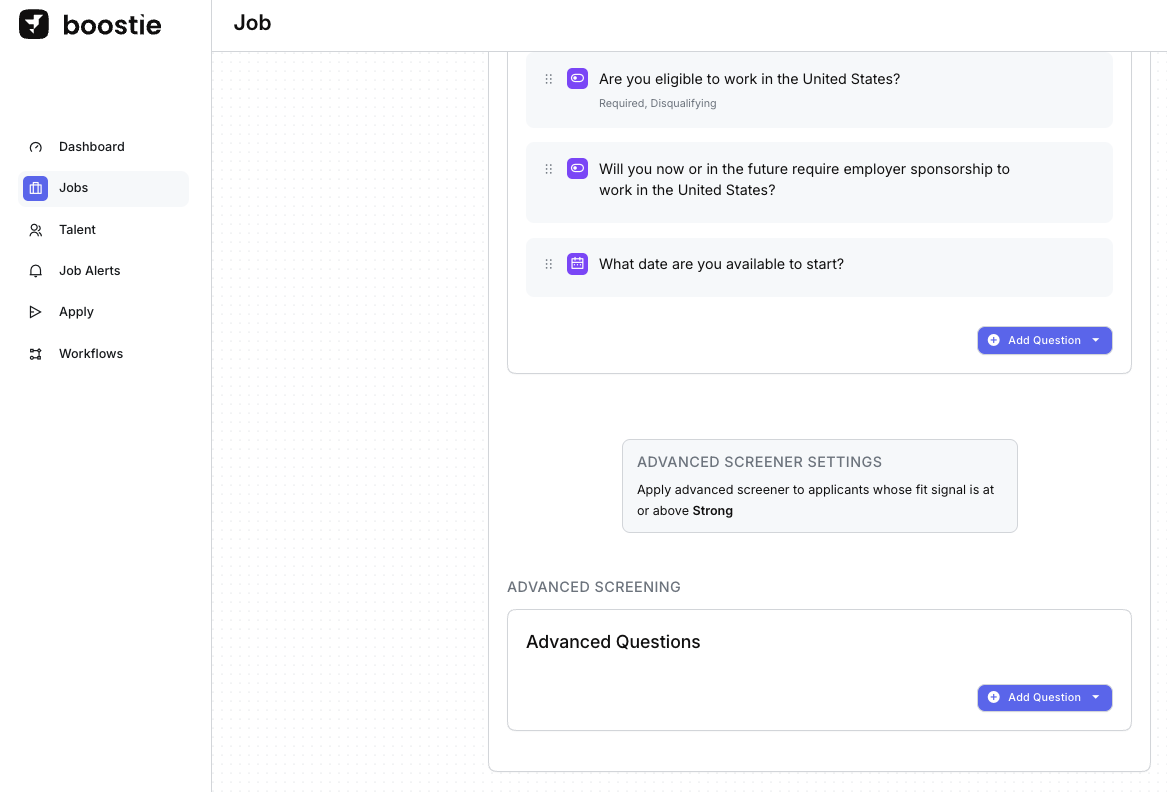
4. Set your Minimum Fit Signal.
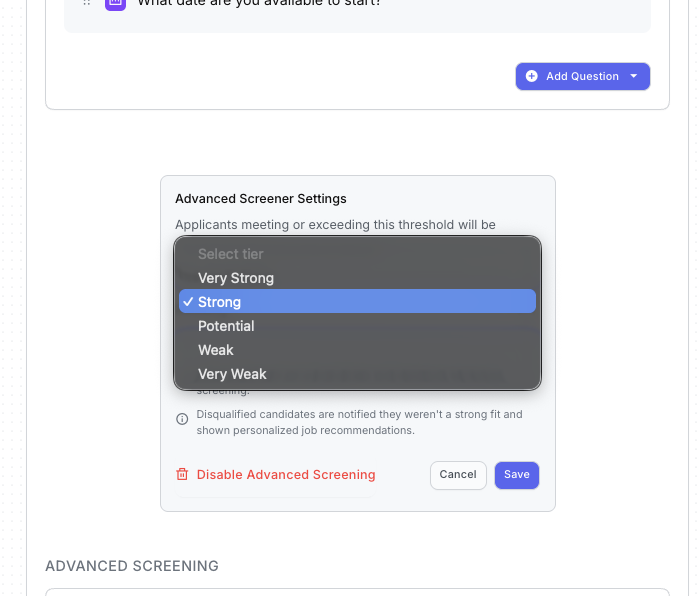
Once enabled, you'll be prompted to select the minimum fit signal required for a candidate to be shown the Advanced Screener. A few things to know before you save:
- Spam applicants are automatically excluded from advanced screening.
- Disqualified candidates are notified they weren't a strong fit and shown personalized job recommendations instead.
- Applicants without a resume receive a default Potential fit signal and qualify for the screener when your threshold is set to Potential or below.
- Tip: If you click Disable Advanced Screening and save, don't worry, your questions aren't gone. Re-enable the Advanced Screener, choose your Fit Signal, and click Save. Your previously created questions will reappear.
When you've made your selection, click Save.
Building Out Advanced Questions
In the Advanced Questions box, click Add Question. You'll see three options.
Tip: You're not locked into one method. Mix and match, some questions from AI, some from the library, some from scratch. Build it however works best for you.
Note: When using Voice Interview mode, only Short Text and Long Text question types are available. Other types are incompatible with voice delivery and will not appear as options in the question editor or library.
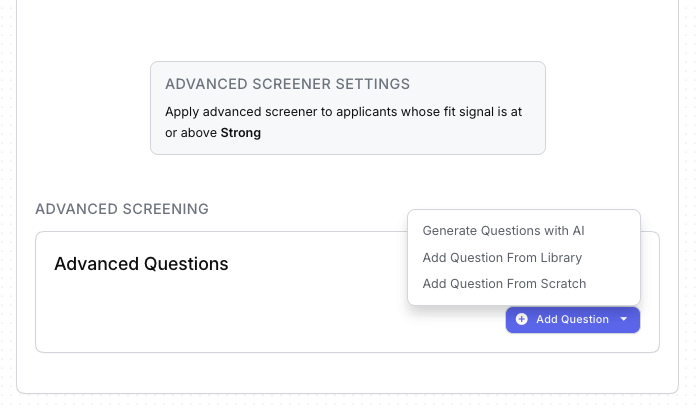
Generate Questions with AI
Boostie uses the job description to generate questions automatically, no lifting required. From the slide-out:
- Select the number of questions you want Boostie AI to generate, then click Save.
- The slide-out closes and your questions appear in the Advanced Questions section.
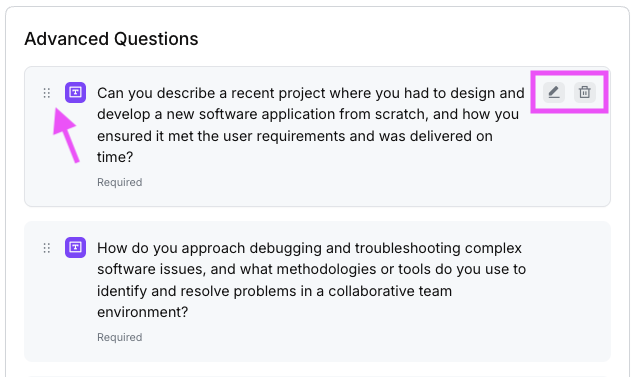
- To edit a question, hover over it and click the pencil icon. To delete, click the trash can icon.
- To reorder, click and hold the 6-dot icon on the left of any question and drag it up or down.
Add Question From Library
The library is where pre-built questions live. You can use it for both Level 1 (knockout) screening questions and Advanced Screener questions. Find it under Apply → Questions + Fields.
Tip: If you plan to reuse questions across multiple jobs, build them in the library first, it'll save you time.
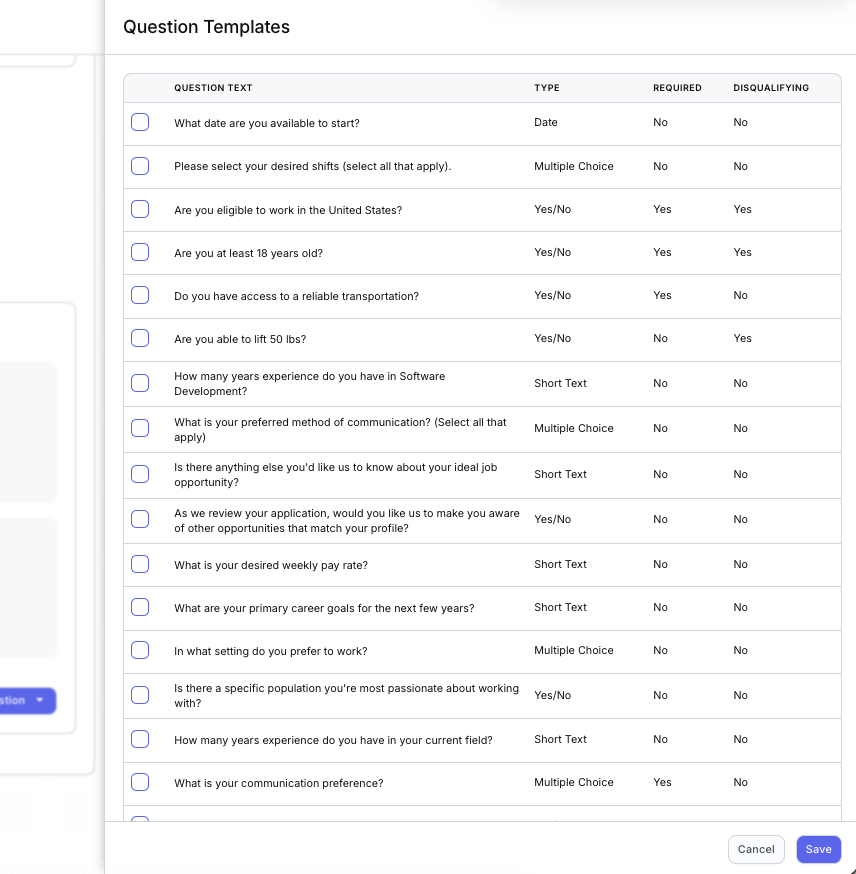
From the Question Templates slide-out:
- Select the questions you want to add. Each question shows its type, whether it's Required, and whether it's Disqualifying. You'll be able to adjust the Required and Disqualifying settings after adding them to the Advanced Questions section. When finished, click Save in the bottom right.
- Your selected questions now appear in Advanced Questions. From here you can:
- Edit - click the pencil icon
- Delete - click the trash can icon
-
Reorder - click, hold, and drag the 6-dot icon to re-order your question
Note: You cannot edit the Question Type on Questions from Library, but you can edit the question text, choices, and Required setting. Any edits made here apply only to this job - they won't affect the original library question.
- For Multiple Choice questions, you have the option to disqualify an applicant based on a specific answer. Check the Disqualify if selected box next to any answer that should be disqualifying.
Add Question From Scratch
Build your own questions from the ground up, useful when you need something role specific or client specific that isn't in the library.
Note: Questions added from scratch default to Required. Uncheck this box if the question is optional.
- Click Add Question From Scratch. The question slide-out appears.
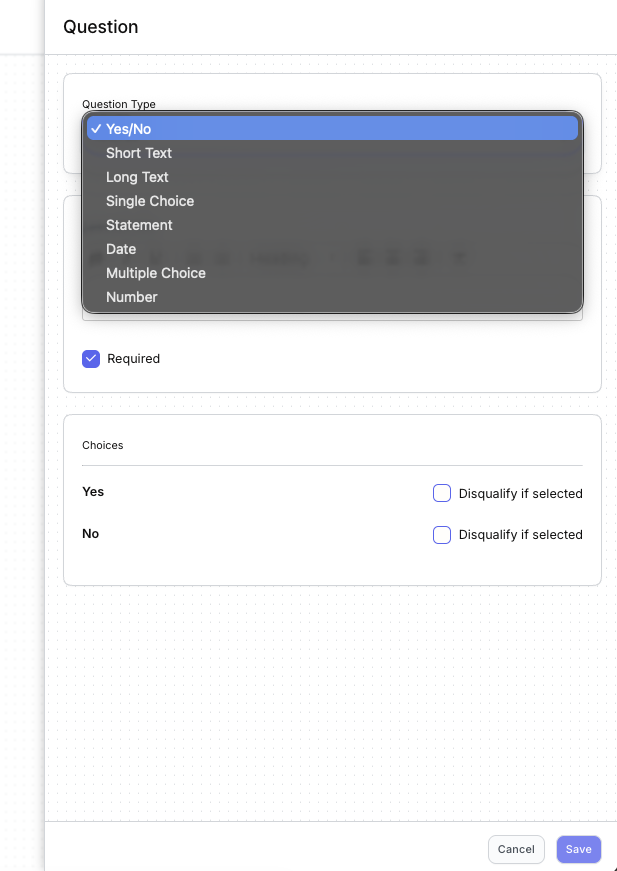
- Choose your Question Type. The slide-out fields adjust based on the type selected, Short Text questions just need a Required decision, while Multiple Choice questions require you to build out the answer options.
- Format your question text however you like, keep it simple or get creative with formatting.
Preview the Screener
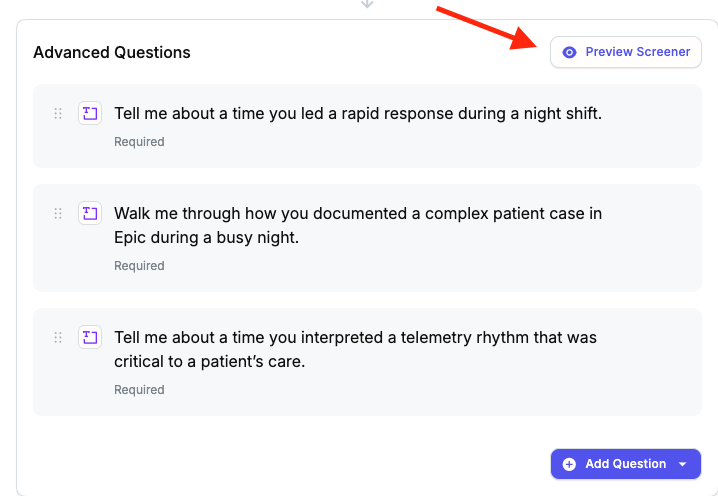
Once advanced questions are configured on a job, a Preview Screener button appears next to the Advanced Questions section heading. Click it to open the screener in a new tab using placeholder candidate details. For voice mode, this is how you verify how the interviewer sounds and how your questions flow before any candidate sees it.
Ready to go!
Once your Advanced Questions are configured, your screener is ready to go. Qualified candidates will be prompted automatically, you stay focused on the ones worth your time.