
Use Bullhorn Multi-Select Actions on the Job Record
The Actions menu on the Applicants tab lets you act on multiple candidates at once. Select a group and batch-move them into Boostie review statuses, or - when working from inside the Bullhorn iframe - route them into notes, submissions, and tearsheets in a single step.
Two groups of bulk actions are available:
- Boostie Actions - available to any recruiter in the qualified applicant views (All Qualified, Saved, Hidden, Unreviewed): Add to Saved, Add to Hidden, and Mark Unreviewed.
- Bullhorn Actions - available when reviewing applicants from inside the Bullhorn ATS iframe: Add Note, Add Submission, Add Client Submission, Add to Tearsheet, and more.
When both groups apply, the Actions dropdown organizes them under Boostie Actions and Bullhorn Actions headers.
Bulk Boostie Actions
Use these to batch-update how applicants appear across your review views - no ATS connection required.
1. Open the job and go to the Applicants tab
Navigate to the job and open the Applicants tab. A Select All checkbox appears next to the Filters button whenever bulk actions are available for your current view.
2. Select applicants
Check individual applicants using the checkbox on each row, or click Select All to select everyone matching your current filters on the page. If your filter returns more records than fit on one page, a prompt appears to extend the selection to all matching applicants across every page.
3. Click Actions and choose a Boostie Action
With applicants selected, click Actions and pick from the Boostie Actions section:
- Add to Saved - marks the selected applicants as Saved.
- Add to Hidden - marks the selected applicants as Hidden.
- Mark Unreviewed - clears any existing Saved or Hidden status.
A confirmation message shows how many applicants were updated, and the list reloads so the fit-signal counts and view totals reflect the change.
Note: Bulk Boostie Actions are not available on campaign landing pages.
Bulk Bullhorn Actions
In addition to the single-record actions already on each applicant (scroll down to: Workflow tip: use Bullhorn Actions directly from Boostie), Boostie supports four multi-select Bullhorn actions from the Applicants tab:
- Add Note
- Add Submission
- Add Client Submission
- Add to Tearsheet
1. Open the job and head to the Boostie tab
Navigate to the job record in Bullhorn and click into the Boostie tab to review applicants.
2. Save your top applicants
Work through the applicant list and click the thumbs-up icon on anyone worth moving forward. This drops them into the Saved group under Eligible Applicants.
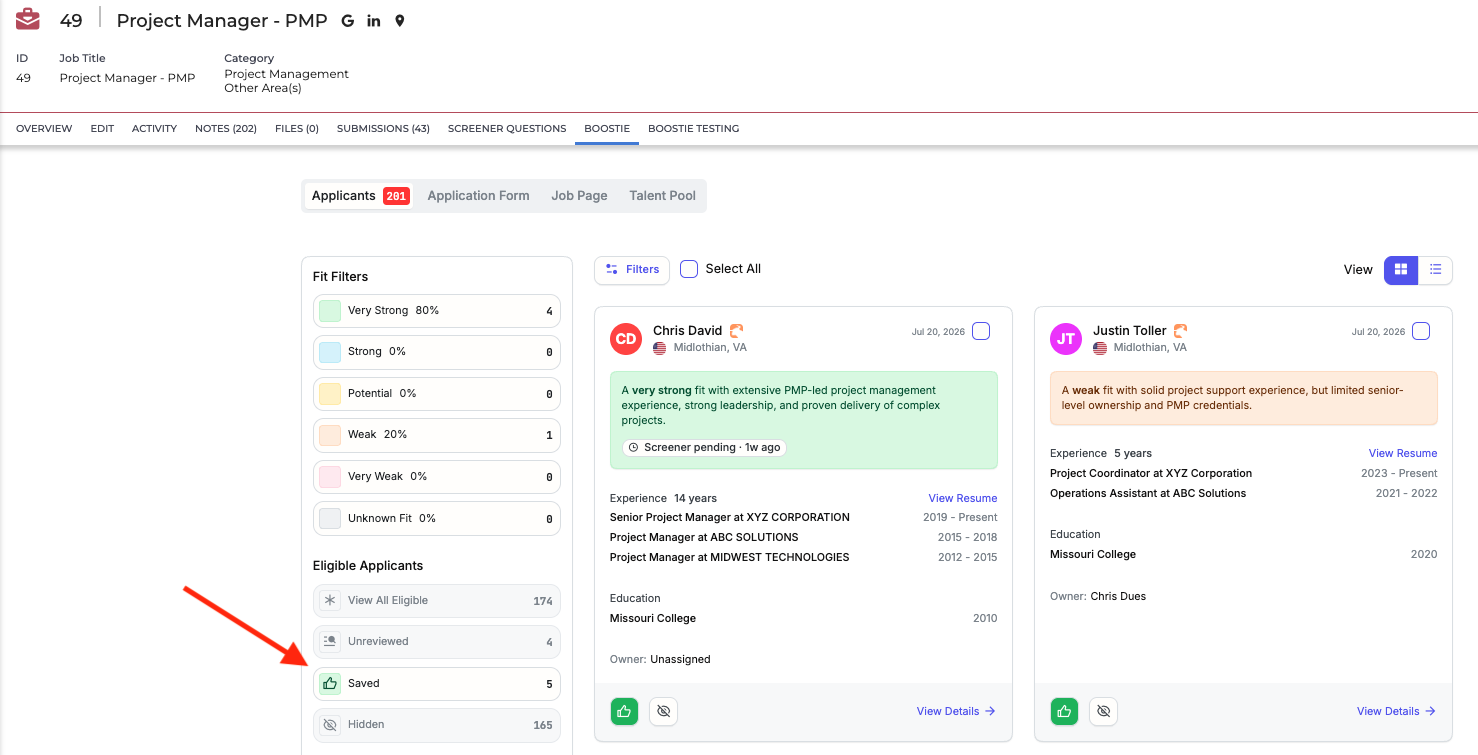
3. Select all your Saved applicants
Once you've finished reviewing, click Saved under Eligible Applicants, then click Select All next to the Filters button. Every applicant in the Saved group gets checked automatically. Multi-select works the same way whether you're in card view or list view.
Tip: Toggle between views using the icons in the top right if you want to see more detail per applicant (card) or scan the full list faster (list).
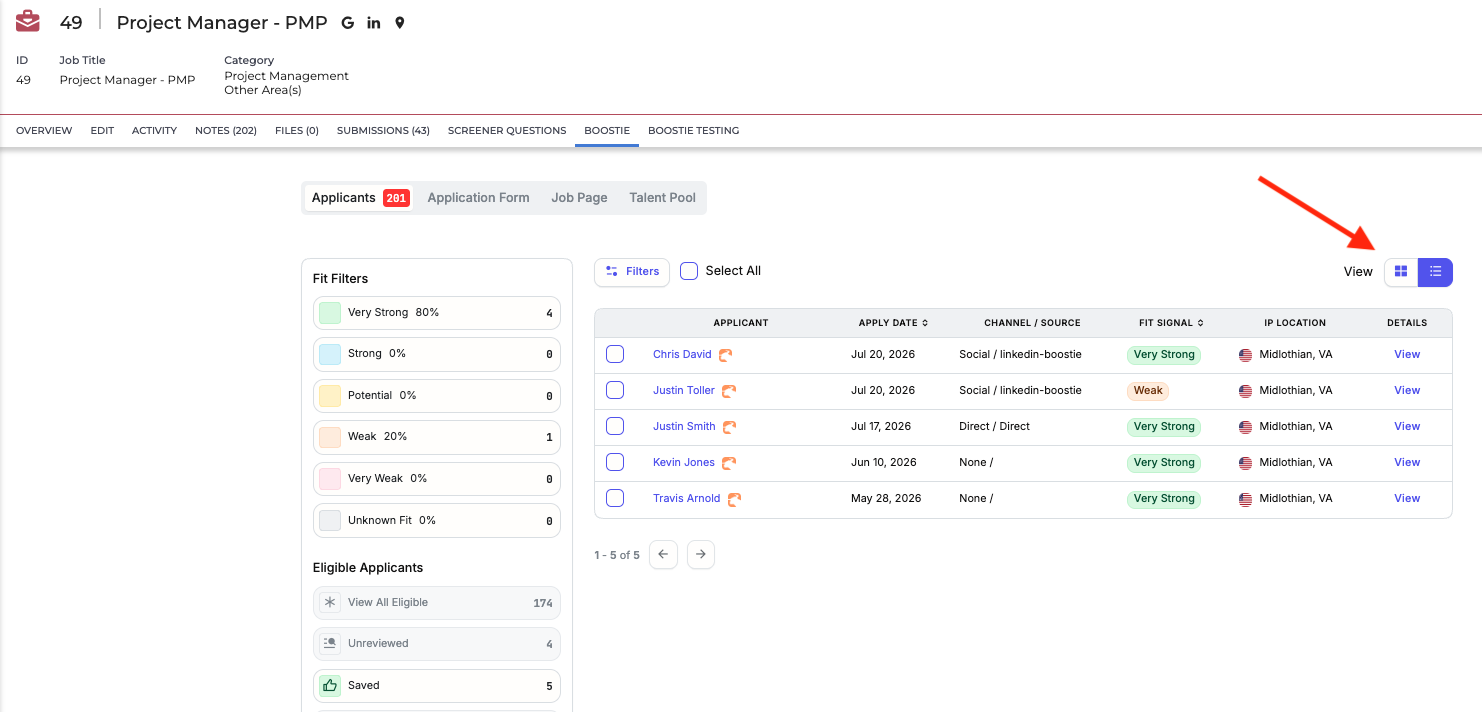
4. Click Actions and pick your move
With your applicants selected, click Actions to open the dropdown and choose from the Bullhorn Actions section: Add Note, Add Submission, Add Client Submission, or Add to Tearsheet.
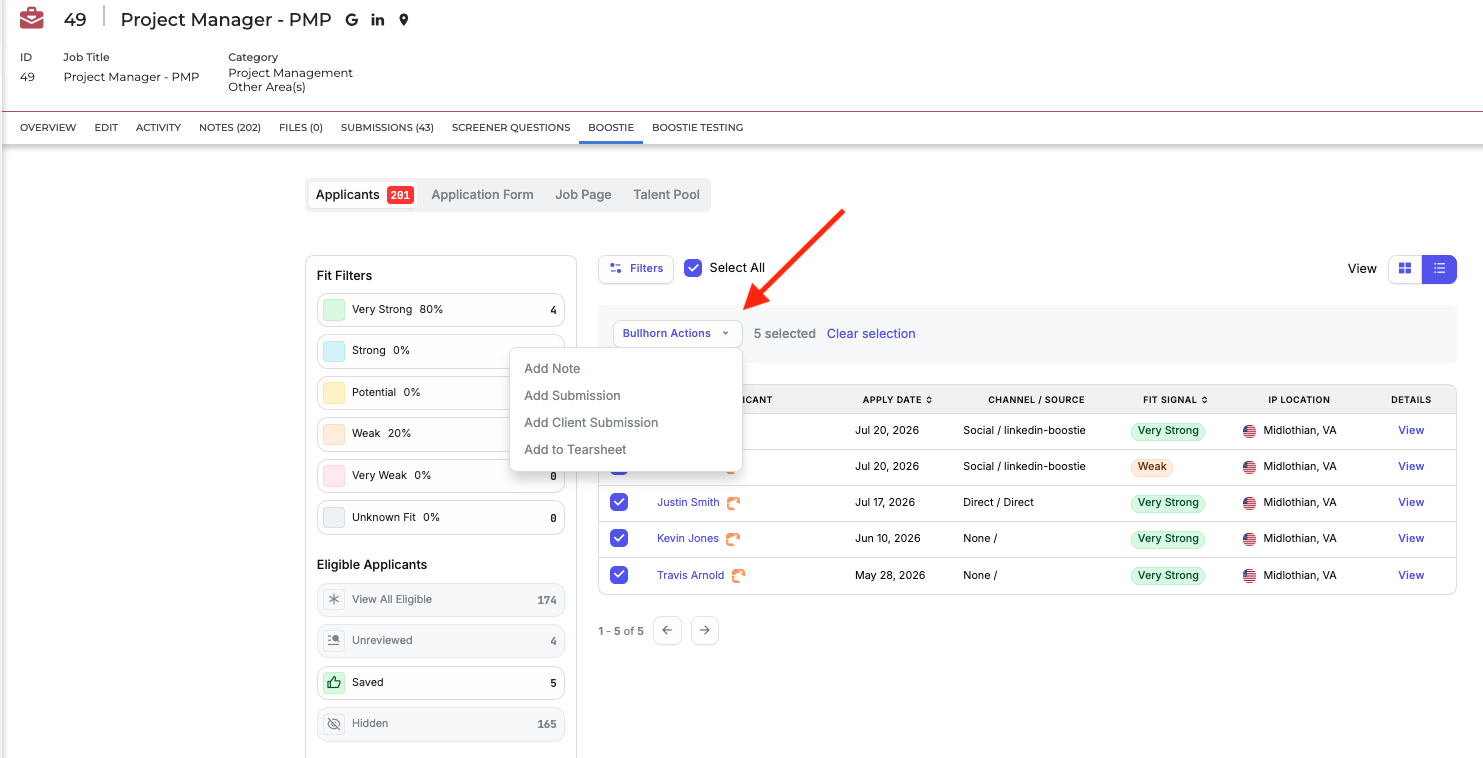
5. Complete the action
What happens next depends on what you picked:
- Add Note slides out a drawer on the right side of the screen.
- Add Submission or Add Client Submission opens the corresponding page in Bullhorn.
- Add to Tearsheet opens a pop-up right on the Boostie tab.
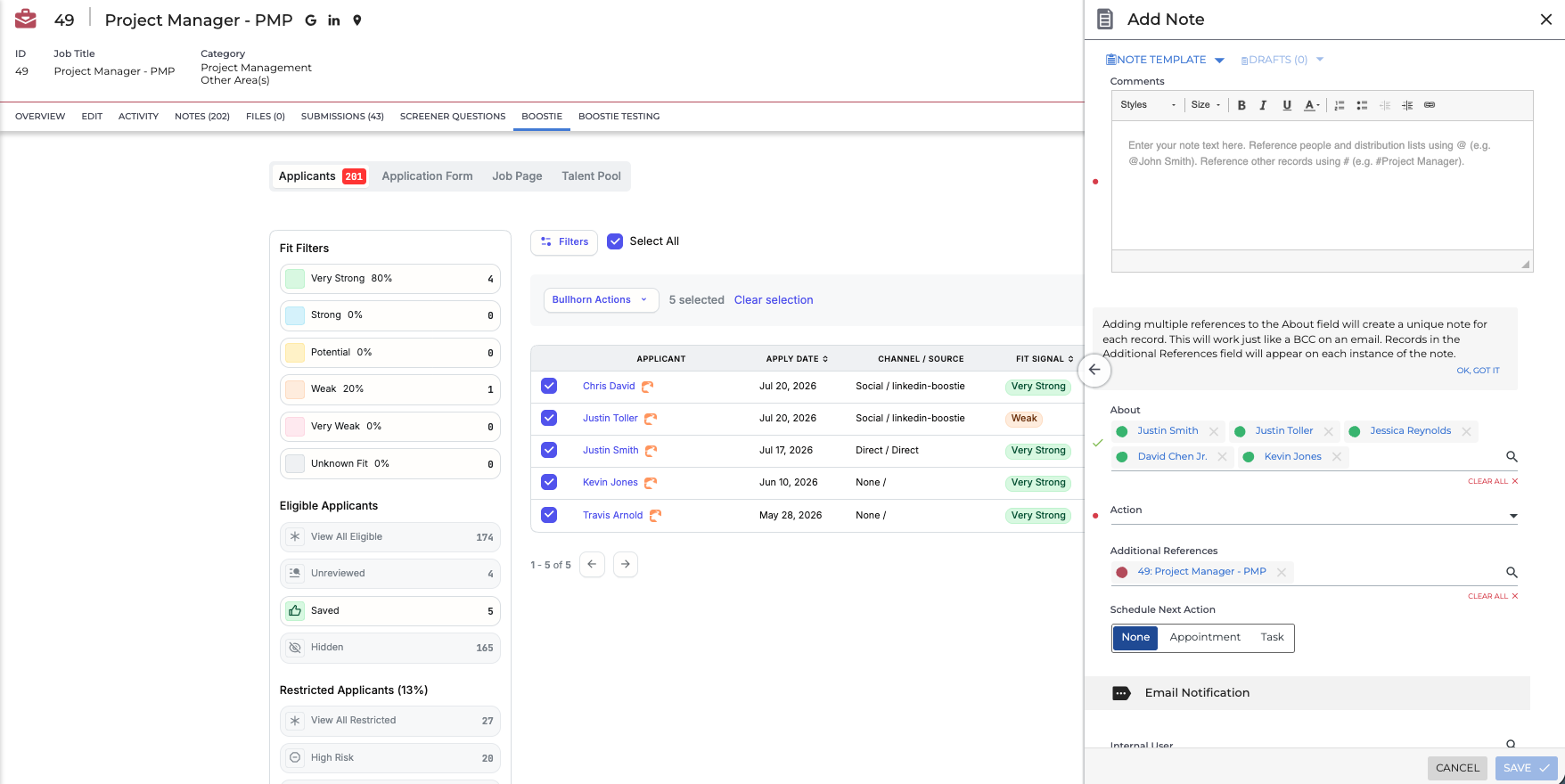
6. Check your pre-filled fields
Boostie does the busywork for you. Every candidate you selected populates the About field (Add Note) or Candidates field (submissions), and the job you're working from populates the Additional References or Job field automatically, depending on the action.
Note: Field labels shift slightly depending on which action you choose, but the behavior is consistent: candidates go in one field, the job goes in the other.