Scott Berkson
Last updated: 27 February 2026
The Jobs module is where Boostie centralizes every role from your ATS and layers in real-time applicant activity, performance insights, and AI-driven fit scoring - all in one place.
This is your day-to-day hub for managing jobs, reviewing candidates, and optimizing how Boostie evaluates fit.
From the left-hand navigation, click Jobs.
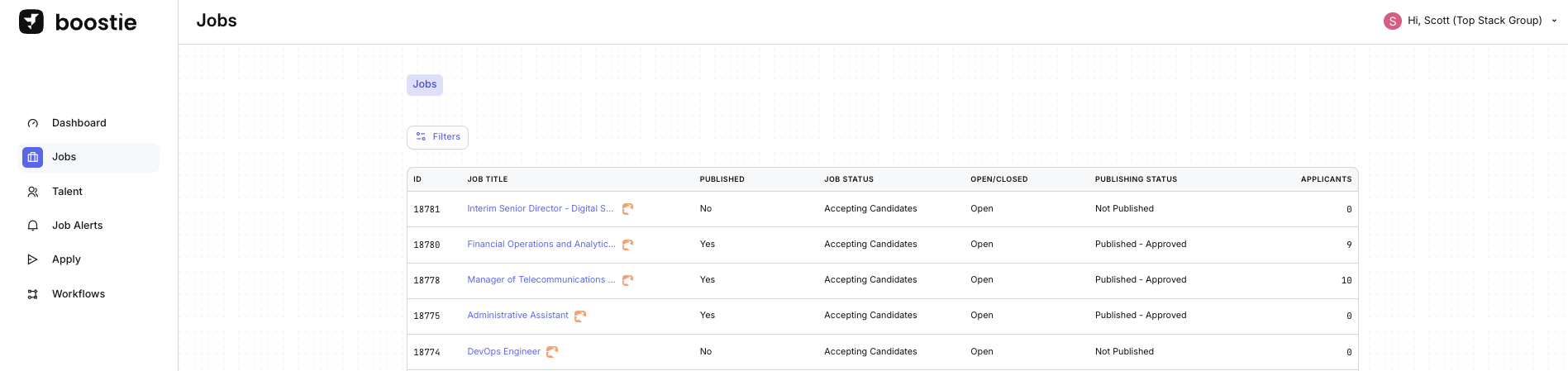
This opens the main Jobs view. Boostie automatically ingests all jobs from your ATS and displays key details, including:
ATS Job ID
Job Title
Published status
Job Status
Open or Closed state
Publishing Status
Number of applicants
This view gives you an at-a-glance snapshot of every role and its current activity.
For Bullhorn Customers and more information on Job Publishing alignment with Boostie and Bullhorn click here.
Click the ATS logo next to a job title to open the role directly in your ATS
Click the job title itself to open the job inside Boostie
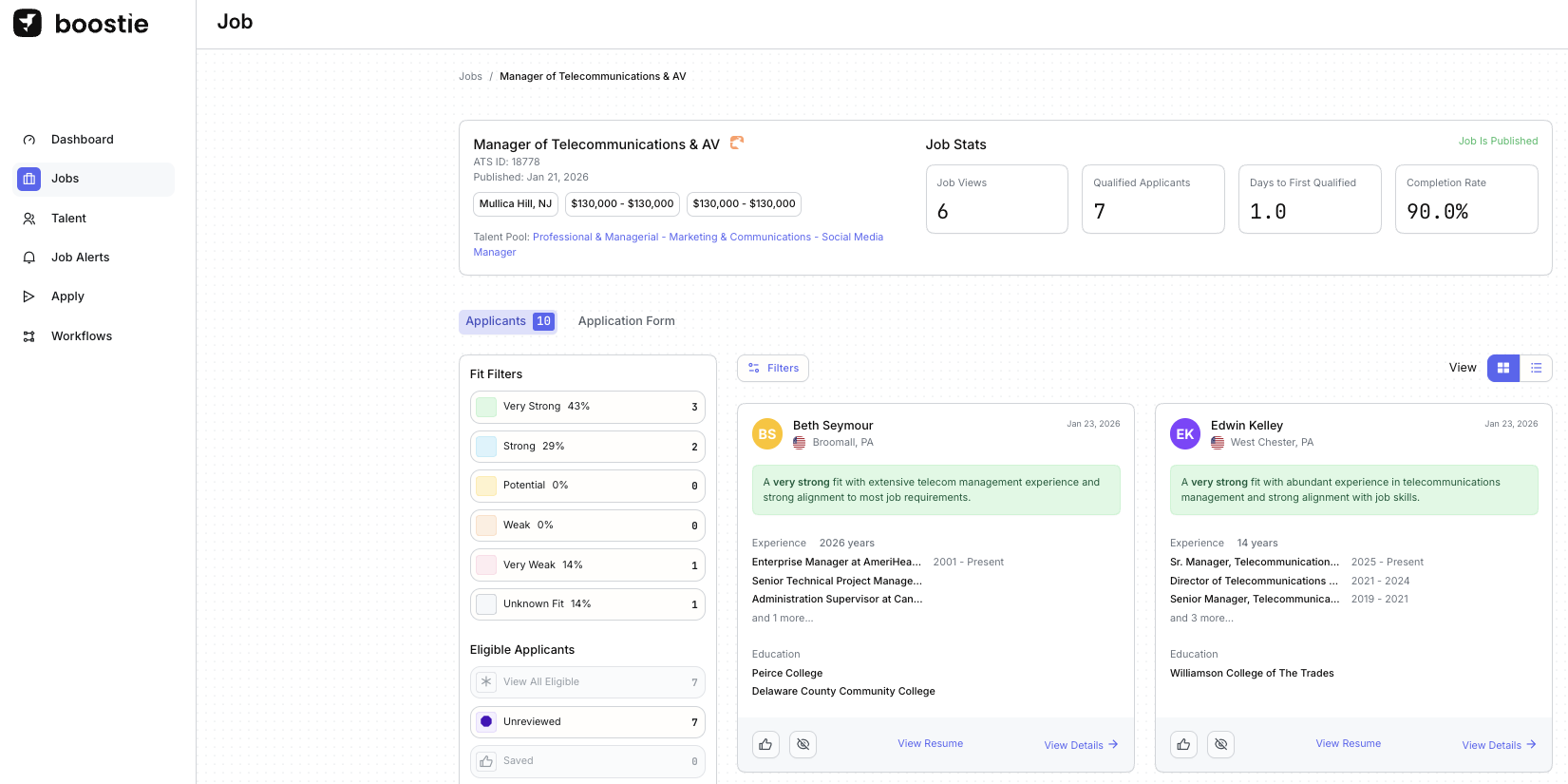
..
This opens the job-specific workspace in Boostie.
When a job is created in your ATS, Boostie imports it automatically. This creates a synced job record in Boostie that mirrors your ATS and stays up to date as changes are made.
That job record is your foundation - it’s always in sync with the ATS so Boostie has the most current view of the role.
When a job meets your publishing criteria, Boostie takes the job record and generates the external job detail page.
This is where Boostie goes to work:
Job data is copied from the job record
AI helps refine, format, and enhance the content
The job is prepared for candidate experience, SEO, and conversion
If a candidate lands on a closed job, Boostie flags it as closed and recommends similar open roles
At this point, the job posting becomes its own living experience - optimized for the outside world.
ATS-driven updates:
Changes made to the job in the ATS (like job description, skills, or benefits) continue to sync into Boostie automatically.
Boostie-controlled edits:
If a Recruiter or Job Owner manually edits job fields in Boostie, those fields become Boostie managed. Future field-level updates made in the ATS won’t overwrite those changes.
Your ATS stays the system of record.
Boostie becomes the system of presentation.
You get clean, reliable data feeding in - and the freedom to shape how jobs show up to candidates.
Structured in the ATS. Optimized in Boostie.
On the job-specific page, Boostie displays:
Job Stats tied to Boostie activity
Fit Filters showing applicant distribution by fit signal
Applicants who applied to this role
This view connects job performance and candidate quality in one place.
Click Filters to narrow applicants by:
Submission Status
Channel
Source
Radius / Location
Name
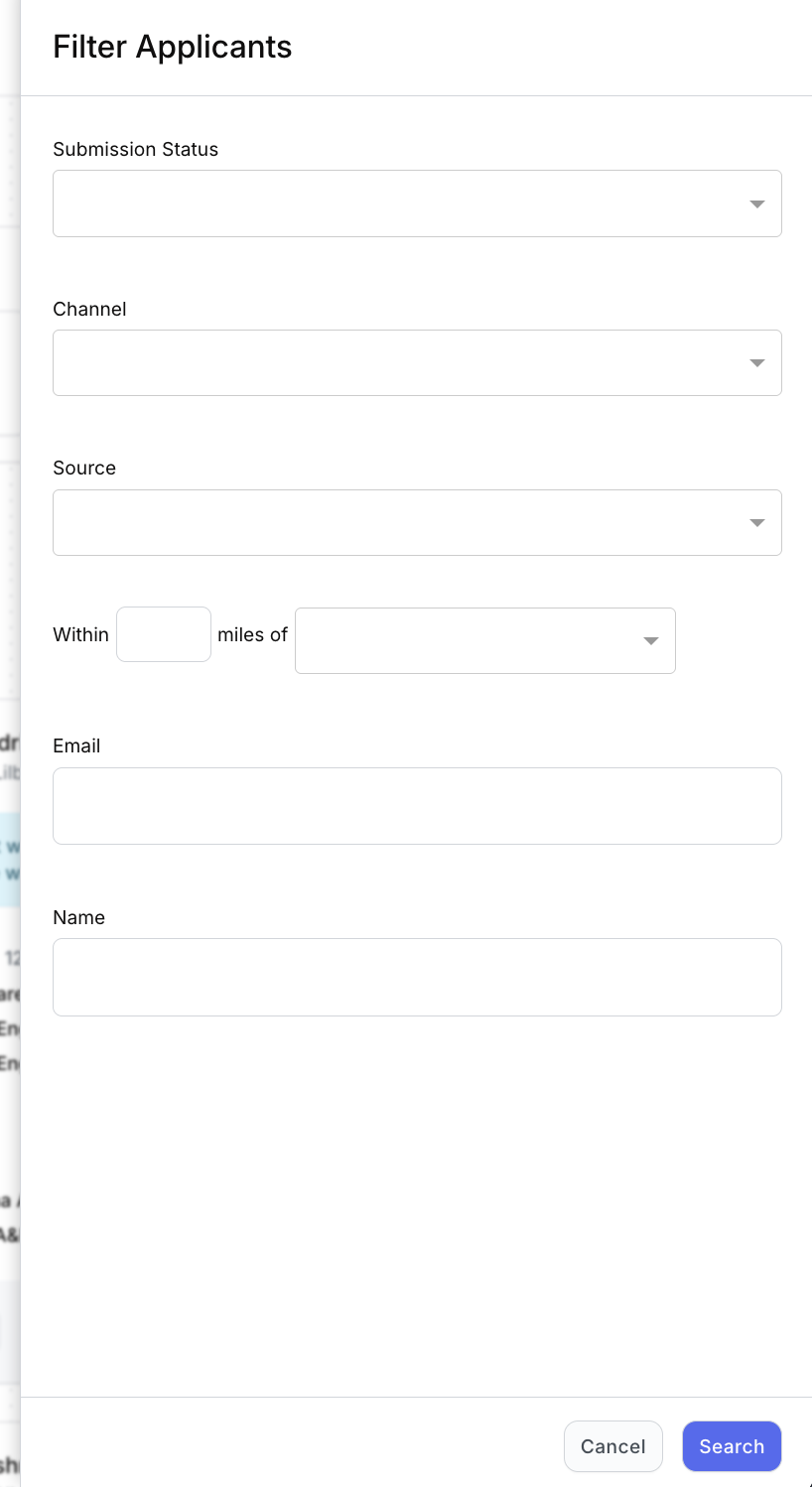
Filters help you quickly zero in on the candidates you care about most.
Use the View buttons to toggle between:
Card view
List view
This lets you review applicants in the format that works best for you.
From either the List view (click View) or Card view (click View Details), the Application Detail slideout opens.
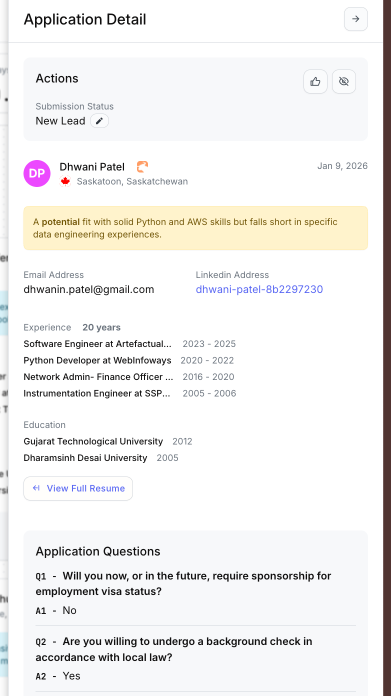
This slideout gives you a complete view of the candidate without leaving the job workflow.
In the Actions section, you can update the candidate’s Submission Status, which syncs directly with your ATS, keeping candidate movement and dispositions aligned across systems.
You can:
Move candidates forward or reject them based on your workflow
Click Thumbs-Up to mark strong fits
Click Hide to remove candidates from your active list
Click View Resume to open the resume drawer alongside the Application Detail
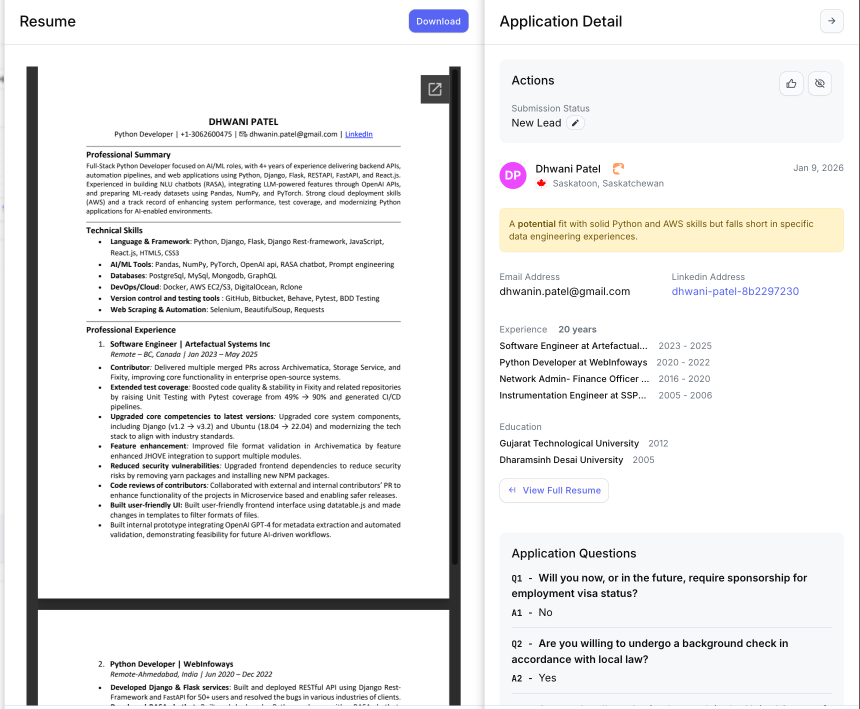
This view allows you to review Application Questions and the resume side-by-side for faster decision-making.
Boostie automatically generates AI Evaluator Notes to summarize candidate fit, strengths, and gaps.
Use these notes to:
Quickly assess candidate relevance
Create clean, concise client submission summaries
Standardize how candidates are presented to hiring managers
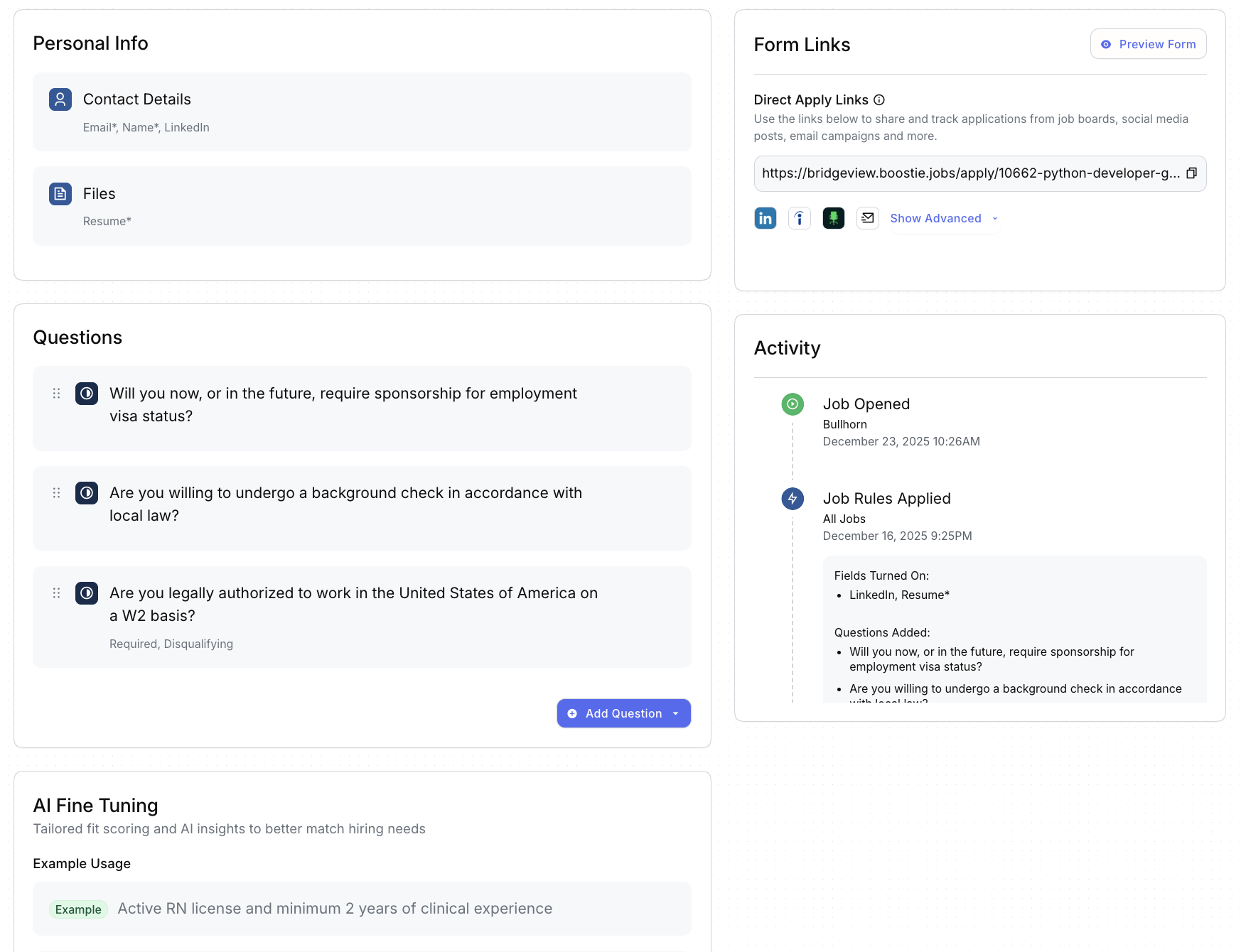
From the Application Form tab, you can:
Edit what information is collected
Add, remove, or update application questions
Copy Boostie Direct Apply Links for job boards, social media, or external sites
View job activity between Boostie and your ATS
Adjust AI Fine Tuning to improve fit scoring
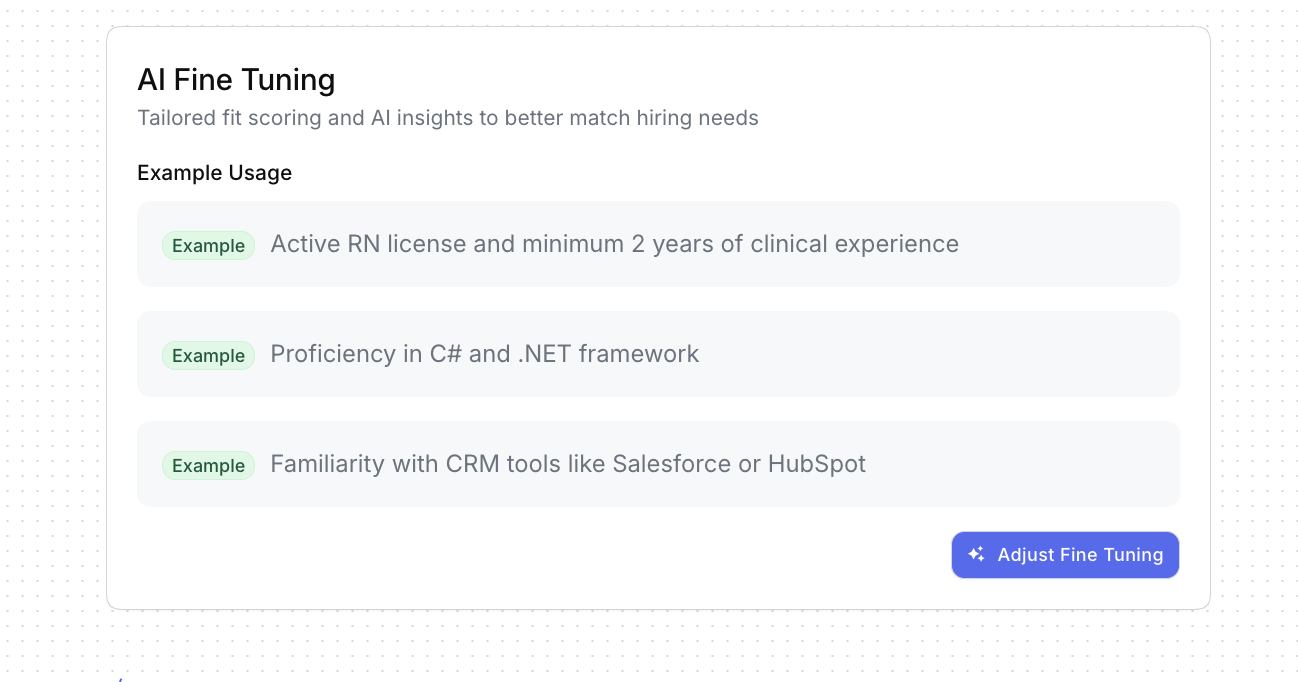
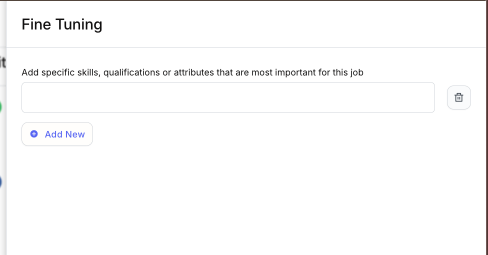
AI Fine Tuning lets you add skills, qualifications, or attributes that matter most for this role, helping Boostie better match candidates to your hiring needs.
The Jobs module turns your ATS data into action, bringing clarity, speed, and intelligence to every role you’re hiring for. One view. One workflow. Smarter hiring, powered by Boostie.