Scott Berkson
Last updated: 27 February 2026
Boostie makes it easy to control who can access the Boostie app - and what they can do once they’re in.
In the Boostie app, click your name/profile dropdown in the top-right corner.
Scroll down and click Settings.
In the Settings navigation, click Users.
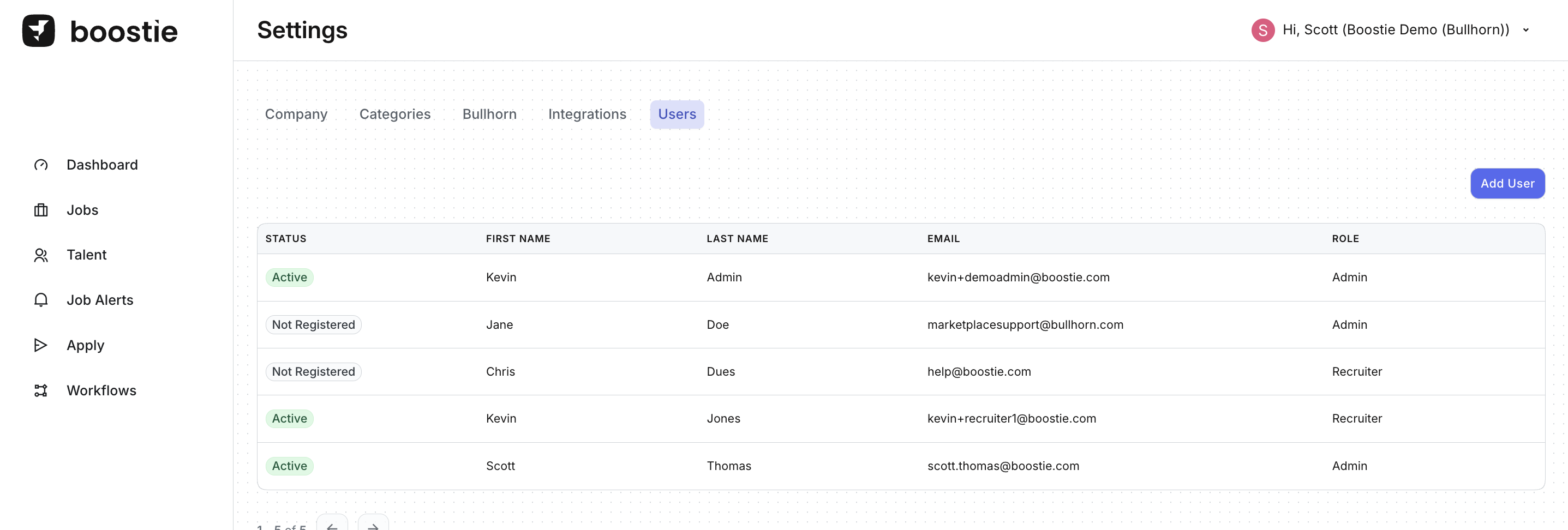
On the Users page you’ll see a table of everyone who has been added, including:
Status (ex: Active, Not Registered)
First Name / Last Name
Role (Admin or Recruiter)
Admins get full access to the Boostie app, ideal for people who manage configuration and workflows.
Typical Admin access includes:
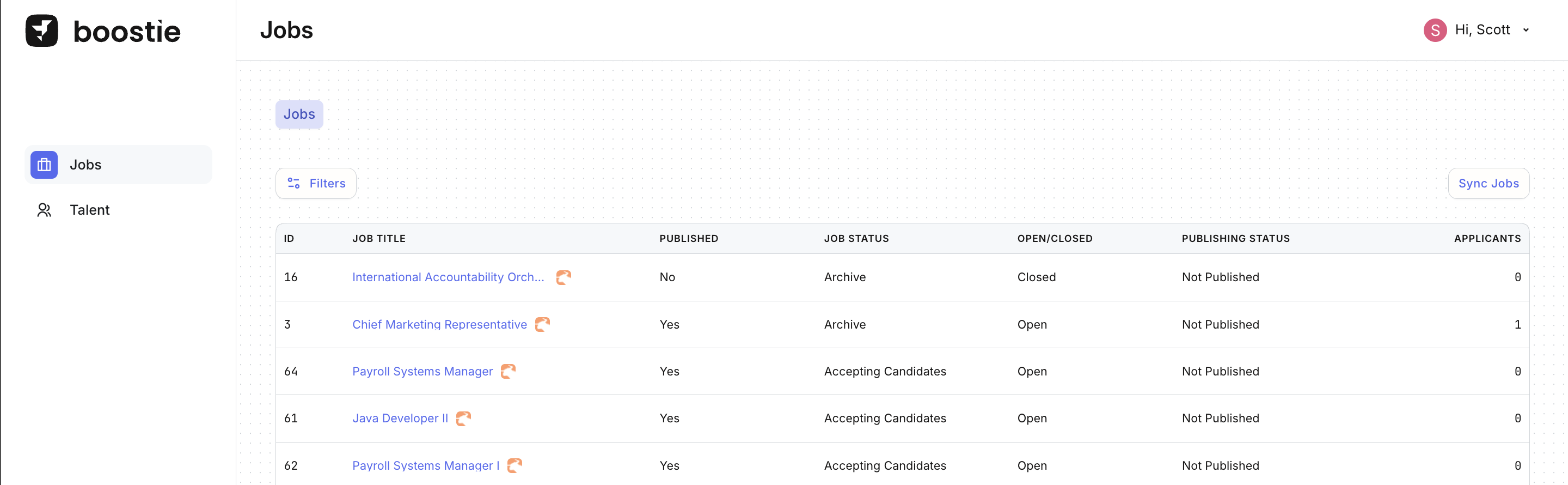
Full platform navigation (ex: Jobs, Apply, Workflows, Talent, Job Alerts, Settings, etc.)
Ability to add/manage users
Recruiter users are a lighter-weight role, mainly for non-Bullhorn customers.
Note for Bullhorn customers: Bullhorn Recruiter users typically access Boostie inside Bullhorn (via the Boostie tab), so they usually don’t need a separate Boostie app user.
Recruiter access includes:
Job Alerts
Talent
(They can still build Job Questions and use AI fine-tuning, but they won’t see the full Admin feature set.)
On the Users page, click Add User (top-right).
Fill in the user details:
First Name
Last Name
Role (Admin or Recruiter)
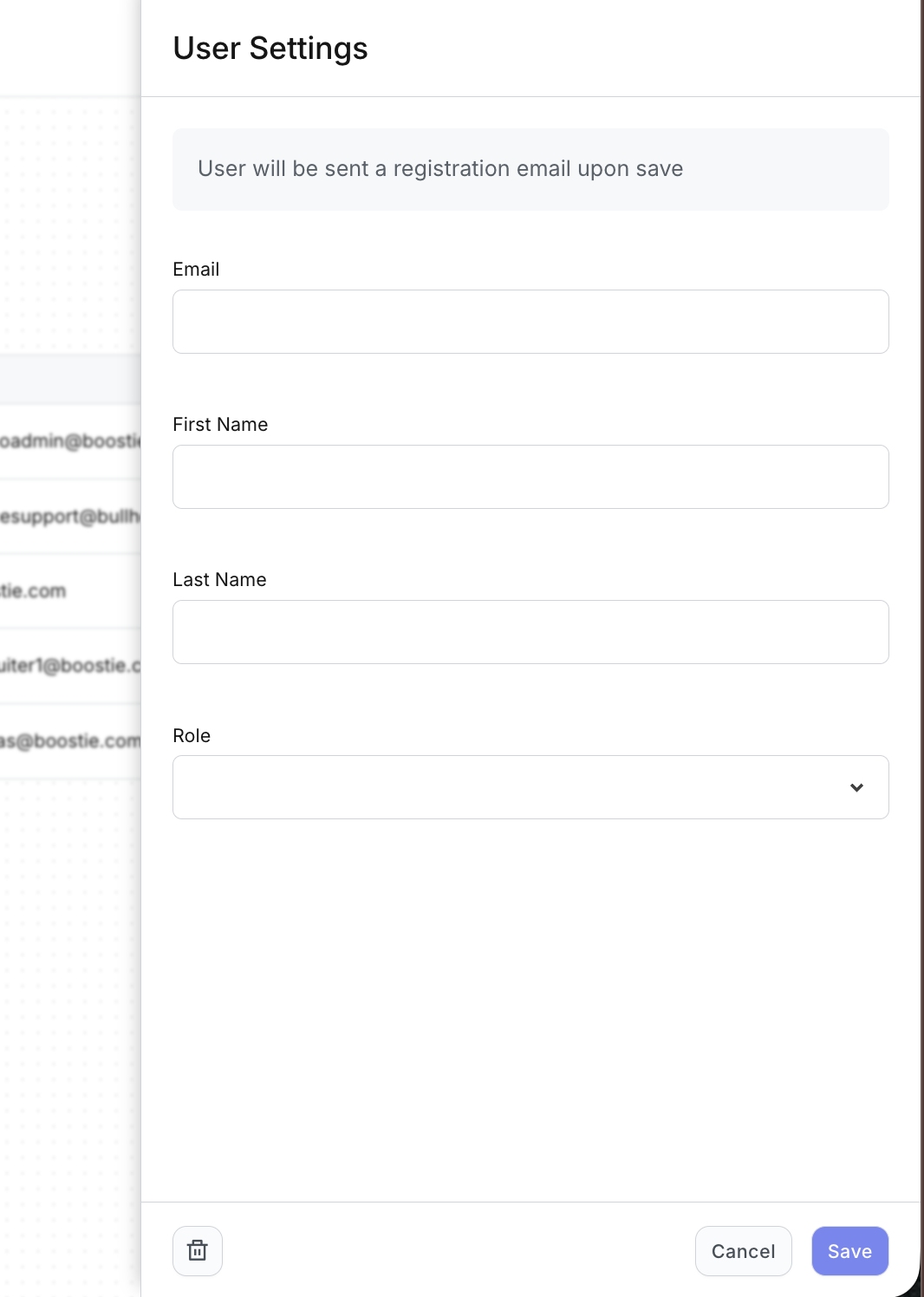
Click Save.
When you click Save, Boostie will automatically send the user a registration email so they can activate their account.
Not Registered: The user has been added, but they haven’t completed registration yet (they still need to use the invite email to finish setup).
Active: The user is registered and can log in based on their role permissions.
From the Users list, click on the user to open the user record to update details (ex: name, role).
In the User Settings screen (slide out), click the trash icon (bottom-left), then confirm.
Tip: Removing a user immediately cuts off access to the Boostie app for that login.