Scott Berkson
Last updated: 24 January 2026
Job Matching (Job Alerts Settings)
Job Matching allows you to preview which jobs Boostie will recommend to subscribers based on the preferences they enter in your Job Alerts pop-up. This gives you full confidence that your job alerts will feel accurate, relevant, and high-quality before going live.
From Job Alerts → Job Alerts Settings, scroll past the Display Settings until you reach Job Matching.
Here’s what the section looks like:
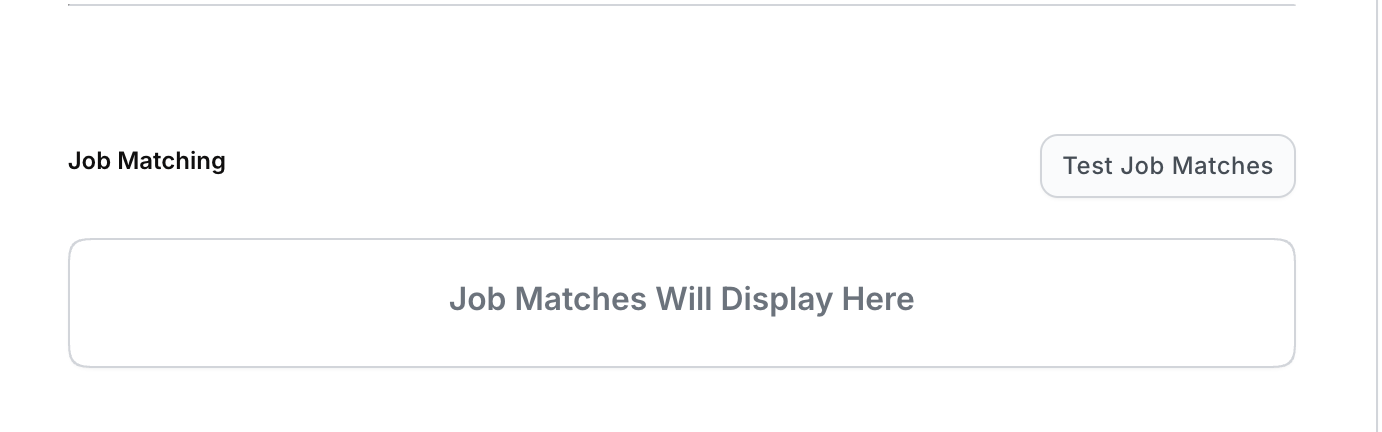
Click the Test Job Matches button on the right to open the testing slide-out.
A slide-out appears where you can enter test criteria - just like a candidate choosing preferences in your Job Alerts pop-up.
Here you’ll choose:
Category
Specialty (if configured)
Location (City, State)
Include Remote Jobs
Send test email (optional)
Email Address (to preview the candidate email experience)
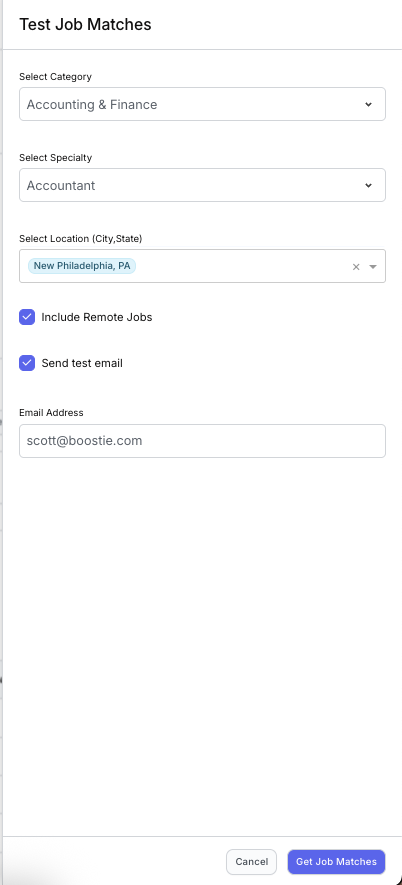
Once the inputs are ready, click Get Job Matches at the bottom-right of the slide-out.
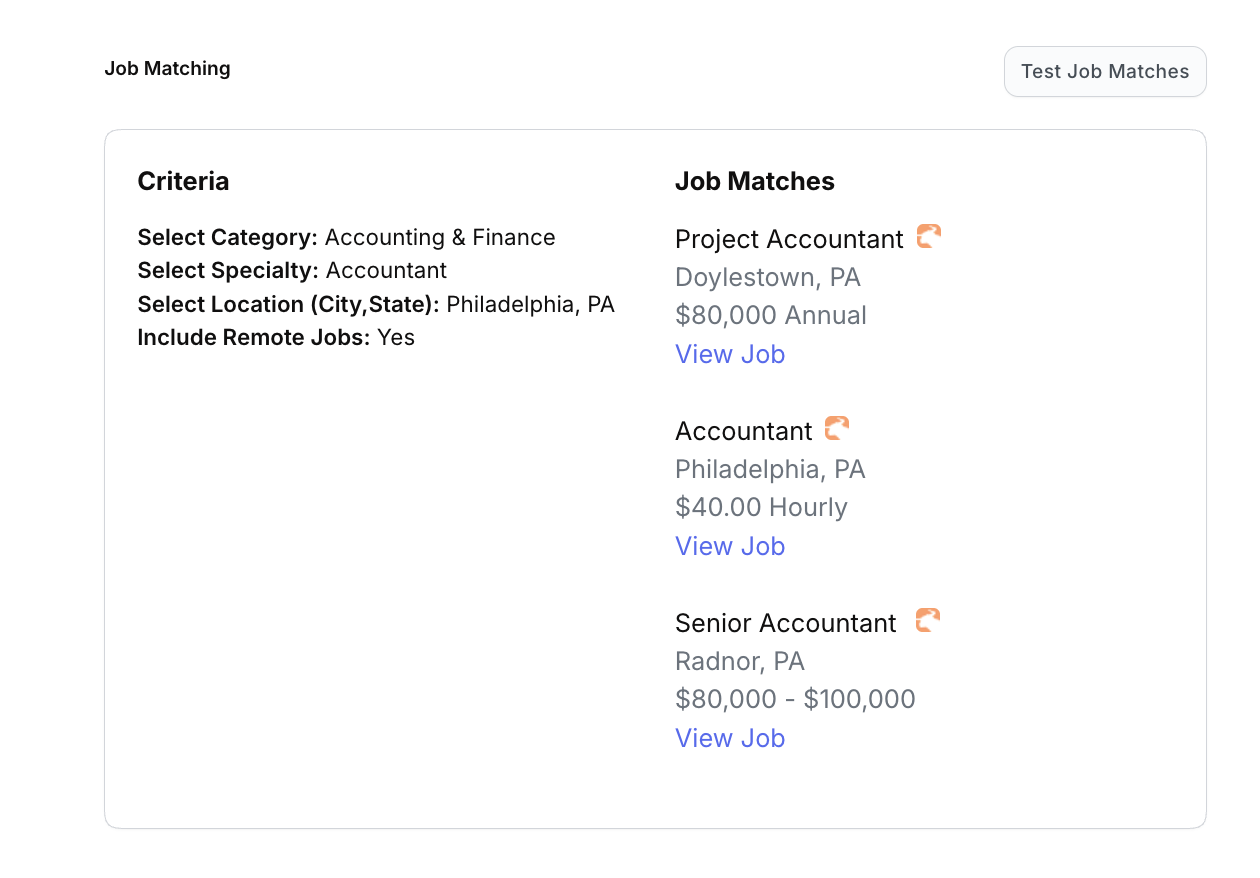
After submitting, the Job Matching section automatically populates with:
The Criteria you tested
The Jobs that matched those preferences
This lets you preview exactly what a subscriber would see.
If you selected Send test email, check your inbox for a message from Boostie Jobs.

You’ll receive a clean, mobile-friendly job alert like this:
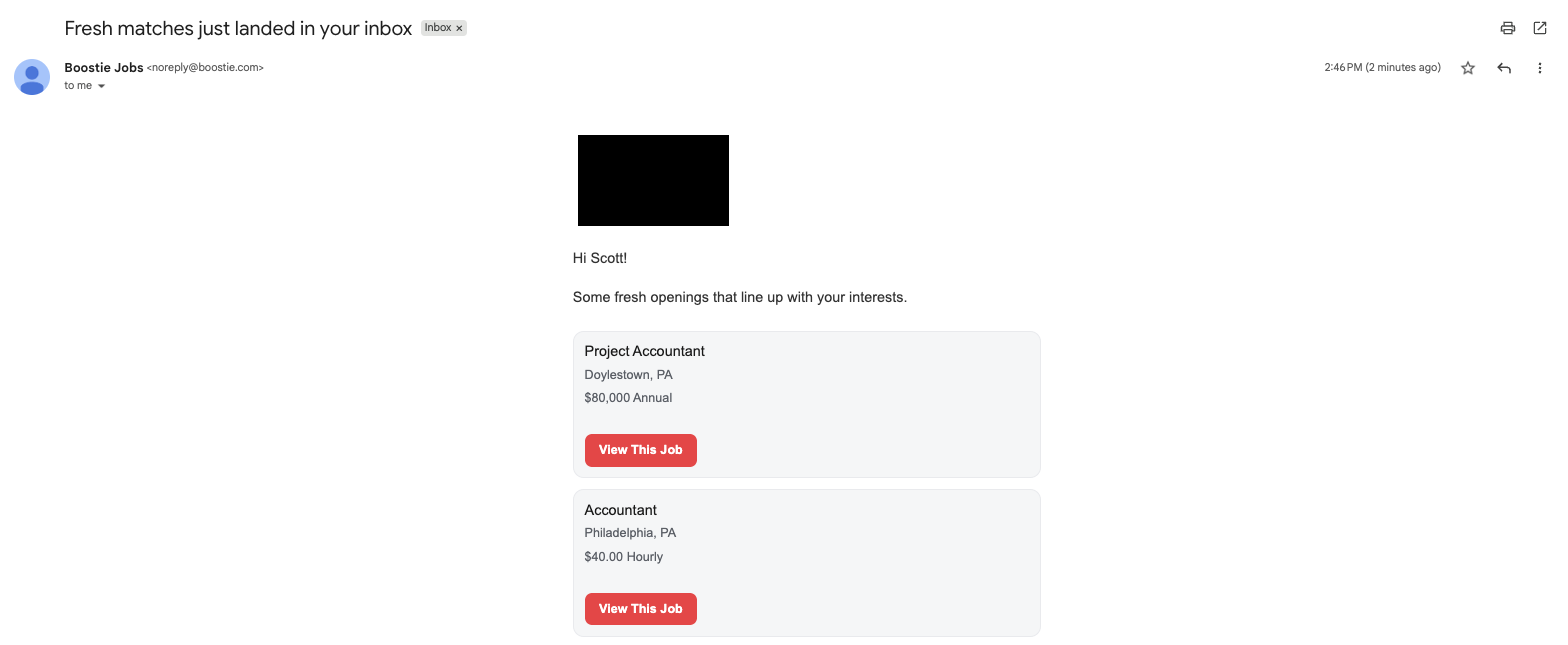
This gives you a full preview of what your candidates will experience when they subscribe to job alerts.
Job Matching ensures your Job Alerts experience is tuned perfectly before you activate it. Before launching, confirm:
Categories and Specialties return meaningful matches
Locations and remote preferences work as intended
Job alert emails appear polished, accurate, and easy to read
Your jobs populate cleanly for subscribers
If you haven’t already, toggle Activate to the ON (green) position in Job Alerts Settings.