Scott Berkson
Last updated: 24 January 2026
During onboarding, Boostie will work with your team to determine how you want Categories and Specialties to be managed. While these configuration options are not visible in your app, they help us ensure your environment is set up exactly the way you need.
If your ATS already maintains clean, reliable categories and specialties, Boostie can follow those values automatically. We’ll sync your ATS structure and use it to organize candidates and jobs inside Boostie.
If your ATS does not have standardized categories - or if values are inconsistent or incomplete - Boostie can classify candidates for you. Our system ingests each candidate record, parses field-level data and resume content, and assigns the most accurate Category and Specialty using Boostie’s algorithm.
Your Boostie onboarding team will confirm which approach you prefer and configure everything for you behind the scenes.
Once this foundation is set, you’ll be able to review, edit, and manage Categories and Specialties in-app - while Boostie keeps your Talent Pools organized automatically.
With Categories and Specialties set up, Boostie does the heavy lifting - keeping your talent pools clean, structured, and ready for engagement. This is also how Boostie segments candidates into Talent Pools and powers smarter matching across Job Alerts, Apply, Talent, and Workflows.
This guide walks you through how to set them up and maintain them.
From your name dropdown in the top right corner of Boostie scroll down to Settings.
In Boostie, go to Settings → Categories.
You’ll see two main panels:
Categories (top)
Specialties (bottom)
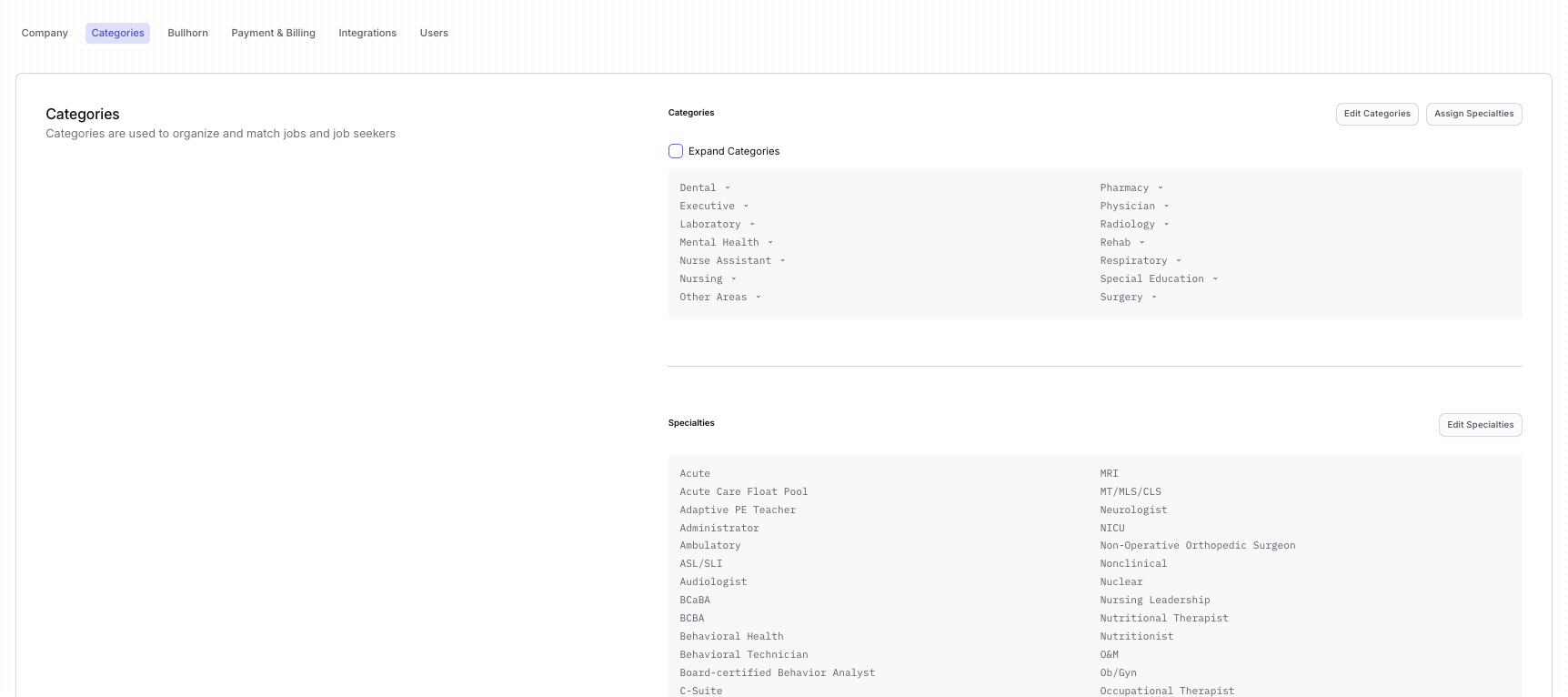
From this page, you can either edit your categories or assign specialties to each category.
When you click Edit Categories, a slide-out opens that displays all available categories.
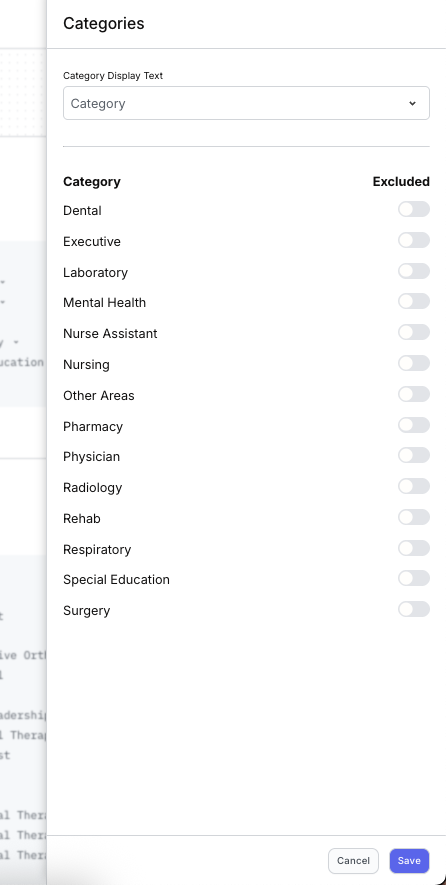
Inside this panel, you can:
Review all categories currently active in your environment
Exclude categories you don't want Boostie to use
Adjust category display text if needed
Be sure to click Save before closing the slide-out.
Click Assign Specialties to manage which specialties belong under each category.
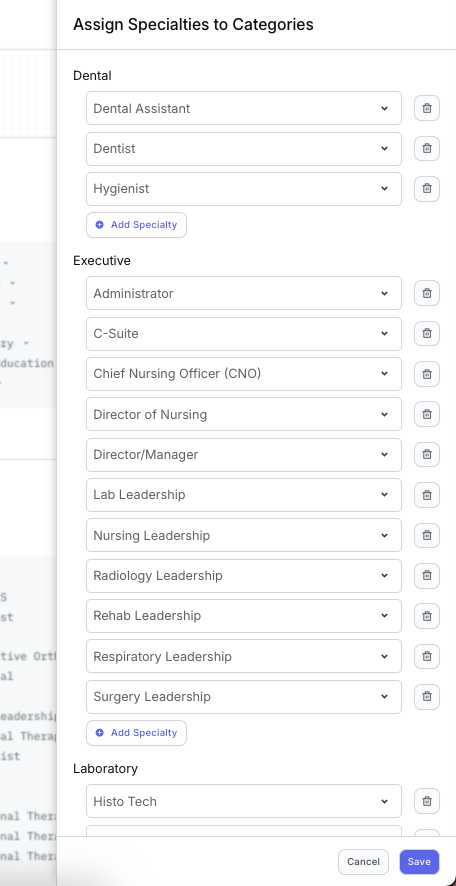
In this panel, you can:
Add a Specialty
Click Add Specialty, then choose a specialty from the dropdown.
Remove a Specialty
Click the trash can icon to delete it from the category.
Build or adjust your specialty structure to better reflect your hiring areas.
When you're finished: Click Save to apply your updates.